NOS 130 WINDOWS ADMIN SINGLE
USER CHAPTER 3 EXAM
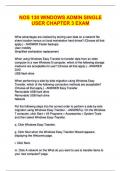
What advantages are realized by storing user data on a network file
share location versus on local workstation hard drives? (Choose all that
apply.) - ANSWER Faster backups
User mobility
Simplified workstation replacement
When using Windows Easy Transfer to transfer data from an older
computer to a new Windows 8 computer, which of the following storage
mediums are acceptable for use? (Choose all that apply.) - ANSWER
DVD
USB flash drive
When performing a side-by-side migration using Windows Easy
Transfer, which of the following connection methods are acceptable?
(Choose all that apply.) - ANSWER Easy Transfer
Removable USB hard drive
Removable USB flash drive
Network
Put the following steps into the correct order to perform a side-by-side
migration using Windows Easy Transfer. - ANSWER p. On the Windows
7 computer, click Start > All Programs > Accessories > System Tools
and then select Windows Easy Transfer.
q. Click Windows Easy Transfer.
g. Click Next when the Windows Easy Transfer Wizard appears,
displaying the Welcome page.
i. Click Next.
m. Click A network on the What do you want to use to transfer items to
your new computer? page.
USER CHAPTER 3 EXAM
What advantages are realized by storing user data on a network file
share location versus on local workstation hard drives? (Choose all that
apply.) - ANSWER Faster backups
User mobility
Simplified workstation replacement
When using Windows Easy Transfer to transfer data from an older
computer to a new Windows 8 computer, which of the following storage
mediums are acceptable for use? (Choose all that apply.) - ANSWER
DVD
USB flash drive
When performing a side-by-side migration using Windows Easy
Transfer, which of the following connection methods are acceptable?
(Choose all that apply.) - ANSWER Easy Transfer
Removable USB hard drive
Removable USB flash drive
Network
Put the following steps into the correct order to perform a side-by-side
migration using Windows Easy Transfer. - ANSWER p. On the Windows
7 computer, click Start > All Programs > Accessories > System Tools
and then select Windows Easy Transfer.
q. Click Windows Easy Transfer.
g. Click Next when the Windows Easy Transfer Wizard appears,
displaying the Welcome page.
i. Click Next.
m. Click A network on the What do you want to use to transfer items to
your new computer? page.