User Guide
How to make basic edits to the PowerPoint Document:
- Changing/Updating the pictures
You can easily change or update the images to ones that are more suitable or relevant to the new
improvements. All you need to do to change some of the images are to click on them and press the
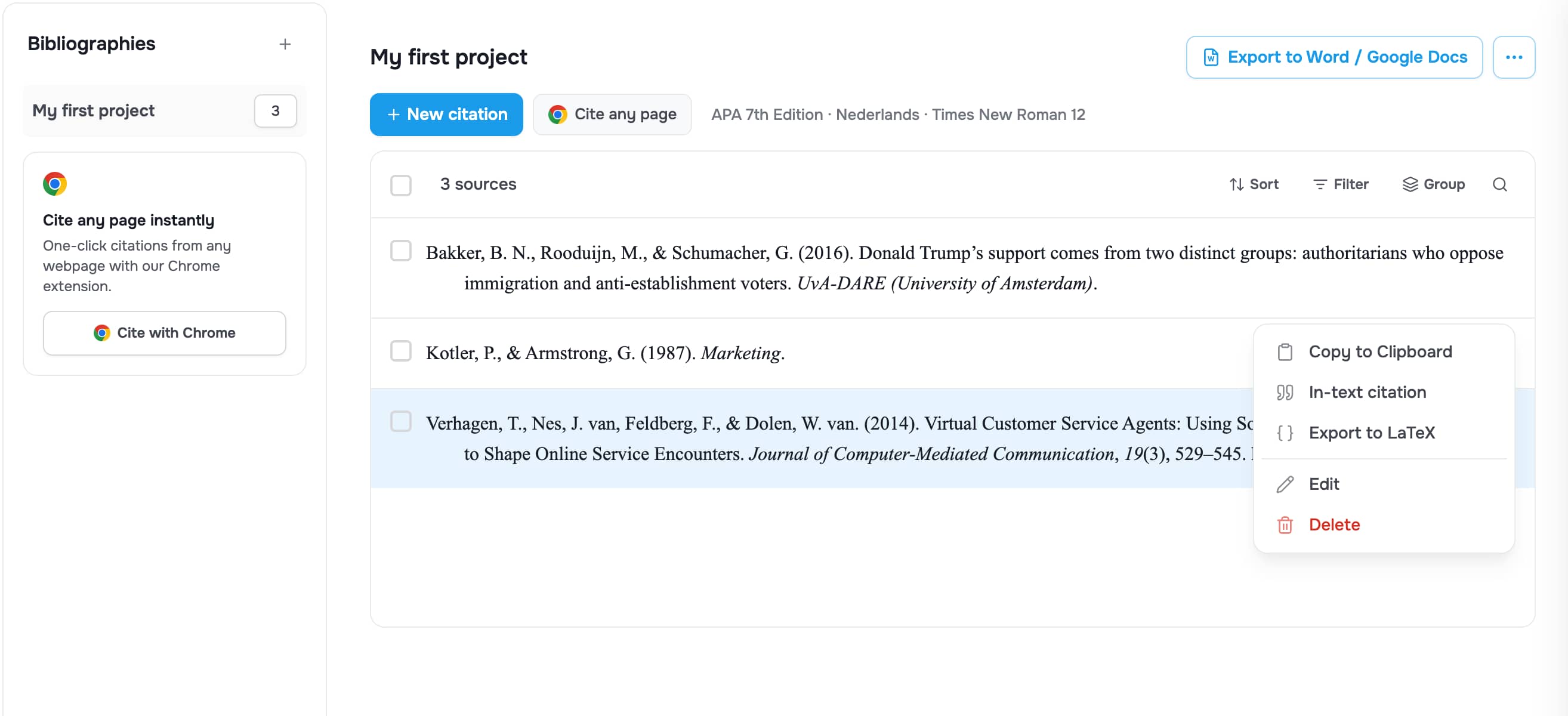
“Delete” button, from there you can copy and paste an image onto the page or you can do it a
different way (Shown in image) where you can right click and change the image from file or
clipboard. From here you can alter the images by the size of them to fit in the blank spaces or you
can use some of the extra features to have them in the background with text over the top of it.
- Design and Colour Scheme Changes
On PowerPoint you can have custom slides and can choose what colour that you want for the design
of the overall slides. When wanting to change the design or colour scheme all you need to do is go
on the “Design” tab along the menu bar, from there you have many different options of design types
whether that be simple designs or more sophisticated ones. Then you can also choose the colour
that you may want the slides to be, there are already set colours that you can just hover over to see
a preview, so you can get a good and clear idea of what the slides will look like.
- How to show the PowerPoint Slideshow
Once the PowerPoint has been completed, you then can broadcast it as a
proper slideshow on different screens. The way to do this is to make sure
that the document is saved and up to date of the newest version and the
version that is going to be shown on screen. Then once you have saved
and made sure it’s the final design you can choose one of the options on
how you want to present it. Choosing the “From Beginning” it starts the
slideshow from the first slide, or if you want to start it on the slide you
have selected choose “From Current Slide”.
How to make basic edits to the PowerPoint Document:
- Changing/Updating the pictures
You can easily change or update the images to ones that are more suitable or relevant to the new
improvements. All you need to do to change some of the images are to click on them and press the
“Delete” button, from there you can copy and paste an image onto the page or you can do it a
different way (Shown in image) where you can right click and change the image from file or
clipboard. From here you can alter the images by the size of them to fit in the blank spaces or you
can use some of the extra features to have them in the background with text over the top of it.
- Design and Colour Scheme Changes
On PowerPoint you can have custom slides and can choose what colour that you want for the design
of the overall slides. When wanting to change the design or colour scheme all you need to do is go
on the “Design” tab along the menu bar, from there you have many different options of design types
whether that be simple designs or more sophisticated ones. Then you can also choose the colour
that you may want the slides to be, there are already set colours that you can just hover over to see
a preview, so you can get a good and clear idea of what the slides will look like.
- How to show the PowerPoint Slideshow
Once the PowerPoint has been completed, you then can broadcast it as a
proper slideshow on different screens. The way to do this is to make sure
that the document is saved and up to date of the newest version and the
version that is going to be shown on screen. Then once you have saved
and made sure it’s the final design you can choose one of the options on
how you want to present it. Choosing the “From Beginning” it starts the
slideshow from the first slide, or if you want to start it on the slide you
have selected choose “From Current Slide”.