

Smartsheet Core Product Certification Exam Prep Document
| 2026/2027 Edition | 250 Verified Questions
Smartsheet Core Product Certification Exam 2026-2027 QUESTIONS AND ANSWERS ALREADY GRADED A+.
100% Verified Solutions | Updated Per Latest Guidelines | Graded A+
This comprehensive study guide contains 250 verified questions and answers covering all critical
domains of the Smartsheet Core Product Certification Exam. Designed for project managers and
business professionals, it provides rigorous preparation through detailed rationales and distractor
explanations. The content reflects the latest 2026/2027 exam blueprint, ensuring relevance and
accuracy. Master Smartsheet fundamentals, sheet structures, automation, dashboards, and collaboration
features to achieve certification with confidence.
Abstract:
The Smartsheet Core Product Certification Exam Evaluation document is a meticulously curated resource for
candidates seeking certification in the 2026/2027 academic year. It comprises 250 verified questions that span the
entire breadth of the exam syllabus, from basic platform navigation to advanced automation and integration. Each
question is accompanied by a detailed answer rationale, explaining not only the correct choice but also why
alternatives are incorrect, thereby reinforcing conceptual understanding. The content is organized into six key
domains, with weight allocations matching the official exam blueprint. This guide is the product of extensive
research and expert review, ensuring that it accurately reflects the current state of Smartsheet's features and best
practices. It is an indispensable tool for project managers and business professionals aiming to demonstrate
proficiency in Smartsheet and earn the Core Product Certification. The document also includes updates on recent
platform changes, such as new automation triggers and enhanced dashboard widgets, keeping learners abreast of
the latest developments. By integrating content areas with performance tracking, users can identify strengths and
weaknesses, enabling targeted study. Ultimately, this resource empowers candidates to approach the exam with
thorough preparation and the confidence necessary to succeed.
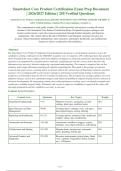
Content Area Overview:
Content Area Questions Key Topics Weight
Smartsheet Fundamentals 1-45 Platform overview, navigation, account 18%
settings, plan types, interface basics
Sheet Structure and Data 46-90 Creating sheets, columns, rows, cell types, 18%
Management data import/export, sorting, filtering
Reporting and Dashboards 91-135 Creating reports, summary fields, dashboard 18%
widgets, charts, data visualization
Automation and Formulas 136-180 Automation workflows, triggers, actions, 20%
formulas, cross-sheet references, cell linking
Collaboration and Sharing 181-220 Sharing sheets, permissions, comments, 16%
alerts, proofing, mobile app
Advanced Features and 221-250 Resource management, project plans, Gantt 10%
Integration view, calendar, integrations (Slack, Google,
etc.), API basics
Page 1
,Q1. A project manager has a parent row 'Phase 1' with child rows 'Task A' and 'Task B'. Task A has
a duration of 5 days and Task B 10 days. Both child rows have no dependencies. The parent row's
duration is automatically set to 10 days. The manager wants the parent row to show 15 days (the
sum of child durations). Which approach achieves this without manually overriding the parent
duration?
A. Use a Duration formula in the parent row: =SUM(CHILDREN())
B. Create a separate summary sheet with cross-sheet references
C. Convert the sheet to a Project Sheet with 'Summary task' enabled
D. Enable automatic parent duration calculation in sheet settings
Correct Answer: A. Use a Duration formula in the parent row: =SUM(CHILDREN())
Rationale: In Smartsheet, parent rows automatically calculate duration based on the span of child tasks'
dates, not the sum of durations. To override this and sum durations, you must enter a formula in the
parent row's Duration column, e.g., =SUM(CHILDREN()). Option B is unnecessary workaround; option
C does not change native behavior; option D does not exist-auto parent duration is default.
Why Wrong:
B - Creating a separate summary sheet with cross-sheet references is overly complex and not the
intended method to sum durations within the same sheet.
C - Enabling 'Summary task' in a Project Sheet still uses dependency-based duration, not sum of
child durations.
D - There is no sheet setting to automatically sum child durations; parent duration is always
span-based unless overridden by a formula.
Reference: Smartsheet Help: Using Formulas in Sheets; Duration Column Behavior
Q2. In a Smartsheet report pulling data from three sheets, each sheet has a checkbox column
'Complete'. The report includes all rows where 'Complete' is unchecked. After adding a new sheet
with the same structure, the report still shows rows from the original three sheets only. What is the
most likely cause?
A. The new sheet's 'Complete' column uses a different column type (symbol instead of checkbox)
B. The new sheet must be added to the report's source selection explicitly
C. The report filter is set to a date range that excludes the new sheet's rows
D. The new sheet's primary column has a different name, causing a mismatch
Correct Answer: B. The new sheet must be added to the report's source selection explicitly
Rationale: Smartsheet reports are static in terms of source sheets; when a new sheet is created after the
report, it is not automatically included. The report must be edited to add the new sheet as a source.
Option A could cause mismatched column types but would not prevent the sheet from appearing in the
report source list; option C might filter out rows but not prevent inclusion; option D is irrelevant as
primary column name does not affect source inclusion.
Why Wrong:
A - Column type mismatch may cause display issues but does not exclude the entire sheet from
being a report source.
C - A date filter could hide rows but would not prevent the report from including the sheet if it were
a source.
D - The primary column name does not determine whether a sheet can be added to a report; column
matching is based on column names across sheets.
Page 2
,Reference: Smartsheet Help: Creating Reports with Multiple Sheets
Page 3
, Q3. A dashboard contains a metric widget configured to show the count of rows in a sheet where
'Status' equals 'In Progress'. The sheet has 500 rows, with 200 set to 'In Progress'. The widget
displays 190. Which issue is most likely causing the discrepancy?
A. The widget's refresh is manual and last refreshed before a batch update
B. The sheet has rows in a hierarchy that are collapsed and not counted
C. The widget uses a summary formula that excludes child rows
D. The sheet's filter on the widget includes additional criteria
Correct Answer: D. The sheet's filter on the widget includes additional criteria
Rationale: Metric widgets can have additional filters that modify the count. If the widget's source data
includes filters (e.g., excluding certain rows), the count may differ from the overall sheet count. Option A:
refresh lag could cause a count lower than expected but the discrepancy is small and suggests a filter.
Option B: collapsed rows still count. Option C: Metric widgets do not exclude child rows unless a filter
does. Option D is the most plausible because a filter could be unintentionally applied.
Why Wrong:
A - While manual refresh could cause a delay, the discrepancy of 10 rows is unlikely to be caused
solely by a timing issue without prior knowledge.
B - Collapsed or hidden rows are still included in metric counts unless explicitly filtered out.
C - Metric widgets count all rows matching the criteria, including child rows, unless a hierarchy
filter is applied.
Reference: Smartsheet Help: Metric Widgets; Dashboard Widgets
Q4. A workflow automation rule triggers an update request when a date column is changed. The
rule is set to 'When date column is changed, send an update request to the person assigned in the
'Assigned To' column.' After a user changes the date on a row where 'Assigned To' is blank, no
request is sent. The user wants the request to go to a default contact group. What must be
configured?
A. Modify the automation to include a 'Default recipient' option if the contact column is empty
B. Set the 'Assigned To' column to automatically populate with the group when any row is created
C. Use a 'Request update' action that allows multiple recipients and add the group as a static recipient
D. Change the trigger to 'When a row is modified' and add a condition for date changes
Correct Answer: A. Modify the automation to include a 'Default recipient' option if the contact
column is empty
Rationale: Smartsheet automation allows specifying a default recipient if the contact column is empty.
This is under 'Advanced options' in the automation rule. Option B requires manual column update; option
C would send to the group even when date changes, but not as default; option D changes trigger but does
not address blank recipient.
Why Wrong:
B - Auto-populating the 'Assigned To' column retroactively or via form does not help if the column
is already blank at trigger time; automation would still see blank.
C - Adding a static group as a recipient would send requests to the group regardless of assigned
person, not as a fallback.
D - Changing the trigger to 'row modified' with conditions is possible but does not solve the blank
recipient issue without a default.
Reference: Smartsheet Help: Automation Rules; Update Request Recipients
Page 4
| 2026/2027 Edition | 250 Verified Questions
Smartsheet Core Product Certification Exam 2026-2027 QUESTIONS AND ANSWERS ALREADY GRADED A+.
100% Verified Solutions | Updated Per Latest Guidelines | Graded A+
This comprehensive study guide contains 250 verified questions and answers covering all critical
domains of the Smartsheet Core Product Certification Exam. Designed for project managers and
business professionals, it provides rigorous preparation through detailed rationales and distractor
explanations. The content reflects the latest 2026/2027 exam blueprint, ensuring relevance and
accuracy. Master Smartsheet fundamentals, sheet structures, automation, dashboards, and collaboration
features to achieve certification with confidence.
Abstract:
The Smartsheet Core Product Certification Exam Evaluation document is a meticulously curated resource for
candidates seeking certification in the 2026/2027 academic year. It comprises 250 verified questions that span the
entire breadth of the exam syllabus, from basic platform navigation to advanced automation and integration. Each
question is accompanied by a detailed answer rationale, explaining not only the correct choice but also why
alternatives are incorrect, thereby reinforcing conceptual understanding. The content is organized into six key
domains, with weight allocations matching the official exam blueprint. This guide is the product of extensive
research and expert review, ensuring that it accurately reflects the current state of Smartsheet's features and best
practices. It is an indispensable tool for project managers and business professionals aiming to demonstrate
proficiency in Smartsheet and earn the Core Product Certification. The document also includes updates on recent
platform changes, such as new automation triggers and enhanced dashboard widgets, keeping learners abreast of
the latest developments. By integrating content areas with performance tracking, users can identify strengths and
weaknesses, enabling targeted study. Ultimately, this resource empowers candidates to approach the exam with
thorough preparation and the confidence necessary to succeed.
Content Area Overview:
Content Area Questions Key Topics Weight
Smartsheet Fundamentals 1-45 Platform overview, navigation, account 18%
settings, plan types, interface basics
Sheet Structure and Data 46-90 Creating sheets, columns, rows, cell types, 18%
Management data import/export, sorting, filtering
Reporting and Dashboards 91-135 Creating reports, summary fields, dashboard 18%
widgets, charts, data visualization
Automation and Formulas 136-180 Automation workflows, triggers, actions, 20%
formulas, cross-sheet references, cell linking
Collaboration and Sharing 181-220 Sharing sheets, permissions, comments, 16%
alerts, proofing, mobile app
Advanced Features and 221-250 Resource management, project plans, Gantt 10%
Integration view, calendar, integrations (Slack, Google,
etc.), API basics
Page 1
,Q1. A project manager has a parent row 'Phase 1' with child rows 'Task A' and 'Task B'. Task A has
a duration of 5 days and Task B 10 days. Both child rows have no dependencies. The parent row's
duration is automatically set to 10 days. The manager wants the parent row to show 15 days (the
sum of child durations). Which approach achieves this without manually overriding the parent
duration?
A. Use a Duration formula in the parent row: =SUM(CHILDREN())
B. Create a separate summary sheet with cross-sheet references
C. Convert the sheet to a Project Sheet with 'Summary task' enabled
D. Enable automatic parent duration calculation in sheet settings
Correct Answer: A. Use a Duration formula in the parent row: =SUM(CHILDREN())
Rationale: In Smartsheet, parent rows automatically calculate duration based on the span of child tasks'
dates, not the sum of durations. To override this and sum durations, you must enter a formula in the
parent row's Duration column, e.g., =SUM(CHILDREN()). Option B is unnecessary workaround; option
C does not change native behavior; option D does not exist-auto parent duration is default.
Why Wrong:
B - Creating a separate summary sheet with cross-sheet references is overly complex and not the
intended method to sum durations within the same sheet.
C - Enabling 'Summary task' in a Project Sheet still uses dependency-based duration, not sum of
child durations.
D - There is no sheet setting to automatically sum child durations; parent duration is always
span-based unless overridden by a formula.
Reference: Smartsheet Help: Using Formulas in Sheets; Duration Column Behavior
Q2. In a Smartsheet report pulling data from three sheets, each sheet has a checkbox column
'Complete'. The report includes all rows where 'Complete' is unchecked. After adding a new sheet
with the same structure, the report still shows rows from the original three sheets only. What is the
most likely cause?
A. The new sheet's 'Complete' column uses a different column type (symbol instead of checkbox)
B. The new sheet must be added to the report's source selection explicitly
C. The report filter is set to a date range that excludes the new sheet's rows
D. The new sheet's primary column has a different name, causing a mismatch
Correct Answer: B. The new sheet must be added to the report's source selection explicitly
Rationale: Smartsheet reports are static in terms of source sheets; when a new sheet is created after the
report, it is not automatically included. The report must be edited to add the new sheet as a source.
Option A could cause mismatched column types but would not prevent the sheet from appearing in the
report source list; option C might filter out rows but not prevent inclusion; option D is irrelevant as
primary column name does not affect source inclusion.
Why Wrong:
A - Column type mismatch may cause display issues but does not exclude the entire sheet from
being a report source.
C - A date filter could hide rows but would not prevent the report from including the sheet if it were
a source.
D - The primary column name does not determine whether a sheet can be added to a report; column
matching is based on column names across sheets.
Page 2
,Reference: Smartsheet Help: Creating Reports with Multiple Sheets
Page 3
, Q3. A dashboard contains a metric widget configured to show the count of rows in a sheet where
'Status' equals 'In Progress'. The sheet has 500 rows, with 200 set to 'In Progress'. The widget
displays 190. Which issue is most likely causing the discrepancy?
A. The widget's refresh is manual and last refreshed before a batch update
B. The sheet has rows in a hierarchy that are collapsed and not counted
C. The widget uses a summary formula that excludes child rows
D. The sheet's filter on the widget includes additional criteria
Correct Answer: D. The sheet's filter on the widget includes additional criteria
Rationale: Metric widgets can have additional filters that modify the count. If the widget's source data
includes filters (e.g., excluding certain rows), the count may differ from the overall sheet count. Option A:
refresh lag could cause a count lower than expected but the discrepancy is small and suggests a filter.
Option B: collapsed rows still count. Option C: Metric widgets do not exclude child rows unless a filter
does. Option D is the most plausible because a filter could be unintentionally applied.
Why Wrong:
A - While manual refresh could cause a delay, the discrepancy of 10 rows is unlikely to be caused
solely by a timing issue without prior knowledge.
B - Collapsed or hidden rows are still included in metric counts unless explicitly filtered out.
C - Metric widgets count all rows matching the criteria, including child rows, unless a hierarchy
filter is applied.
Reference: Smartsheet Help: Metric Widgets; Dashboard Widgets
Q4. A workflow automation rule triggers an update request when a date column is changed. The
rule is set to 'When date column is changed, send an update request to the person assigned in the
'Assigned To' column.' After a user changes the date on a row where 'Assigned To' is blank, no
request is sent. The user wants the request to go to a default contact group. What must be
configured?
A. Modify the automation to include a 'Default recipient' option if the contact column is empty
B. Set the 'Assigned To' column to automatically populate with the group when any row is created
C. Use a 'Request update' action that allows multiple recipients and add the group as a static recipient
D. Change the trigger to 'When a row is modified' and add a condition for date changes
Correct Answer: A. Modify the automation to include a 'Default recipient' option if the contact
column is empty
Rationale: Smartsheet automation allows specifying a default recipient if the contact column is empty.
This is under 'Advanced options' in the automation rule. Option B requires manual column update; option
C would send to the group even when date changes, but not as default; option D changes trigger but does
not address blank recipient.
Why Wrong:
B - Auto-populating the 'Assigned To' column retroactively or via form does not help if the column
is already blank at trigger time; automation would still see blank.
C - Adding a static group as a recipient would send requests to the group regardless of assigned
person, not as a fallback.
D - Changing the trigger to 'row modified' with conditions is possible but does not solve the blank
recipient issue without a default.
Reference: Smartsheet Help: Automation Rules; Update Request Recipients
Page 4


