
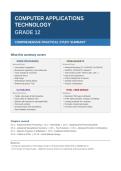
COMPUTER APPLICATIONS
TECHNOLOGY
GRADE 12
COMPREHENSIVE PRACTICAL STUDY SUMMARY
What this summary covers
📄 WORD PROCESSING 📊 SPREADSHEETS
Microsoft Word Microsoft Excel
• Line breaks & pagination • Advanced functions (IF, VLOOKUP, HLOOKUP)
• Bookmarks, hyperlinks, cross-references • SUMIF/S, COUNTIF/S, Nested IF
• Track changes & comments • Text functions (LEFT, RIGHT, MID, LEN…)
• Electronic forms • Date & time calculations
• Mail merge • Charts (stacked bar & column)
• Embedding & linking objects • Subtotal outline feature
• Referencing tools & TOC • Function combinations
🗄️
DATABASES 🌐 HTML / WEB DESIGN
Microsoft Access Notepad++
• Tables, data types & field properties • Essential HTML tags & attributes
• Input masks & validation rules • HTML tables (colspan, rowspan, formatting)
• Queries with operators & calculated fields • Creating a website for a scenario
• Forms with controls • Principles of good web design
• Grouped reports with calculations • Common exam corrections & tasks
• Data validation techniques
Chapters covered
Ch 1 – Advanced Word Processing | Ch 2 – Mail Merge | Ch 3 – Applying Word Processing Skills
Ch 4 – Advanced Spreadsheet Functions | Ch 5 – Text Functions | Ch 6 – Advanced Function Combinations
Ch 7 – Reports & Queries in Databases | Ch 8 – Database Reinforcement
Ch 9 – Tables in HTML | Ch 10 – Good Website Design
Based on:
• Computer Applications Technology Grade 12 Practical Book (ISBN 978-1-928388-65-4)
• CAT Grade 12 Study Guide – Matthew Goniwe School of Leadership and Governance (2025)
,CAT Grade 12 – Comprehensive Practical Study Summary
SECTION 1: WORD PROCESSING – MS WORD
Microsoft Word is a word processing application used to create, edit, format, and share documents. The
Grade 12 curriculum covers advanced features building on Grades 10 and 11 knowledge.
Page 2 of 35
,CAT Grade 12 – Comprehensive Practical Study Summary
Chapter 1 – Advanced Techniques in Word Processing (Term 1)
This chapter covers pagination techniques, navigation tools (bookmarks, hyperlinks, cross-references),
reviewing and track changes, and electronic forms.
1.1 Line Breaks and Pagination
In long documents, single lines can become separated from their paragraphs. Word provides four
pagination controls to prevent this.
Control What it does How to Apply
Widow/Orphan A widow is the last line of a paragraph alone at Home tab → Paragraph options →
Control the top of a page; an orphan is the first line alone Line and Page Breaks → tick
at the bottom. This built-in feature prevents both. Widow/Orphan control
Keep with Next Prevents a page break between two paragraphs Select paragraphs → Paragraph
you want to stay together. options → Line and Page Breaks →
tick Keep with next
Keep Lines Prevents a paragraph from being split across two Select paragraph → Paragraph
Together pages. options → Line and Page Breaks →
tick Keep lines together
Page Break Inserts an automatic page break before a Select paragraph → Paragraph
Before specific style (e.g. chapter headings). options → Line and Page Breaks →
tick Page break before
1.2 Links: Bookmarks, Hyperlinks and Cross-Referencing
These three tools allow efficient navigation within a document or to external resources.
Bookmarks: A bookmark marks a word, section, location or picture for future reference. Once set, you
can jump to it without scrolling through the document.
• To insert: Select text → Insert tab → Links section → Bookmark → type a name → Add.
• Bookmark naming rules: must start with a letter, max 40 characters, no spaces, may use
underscores.
• Hidden bookmarks (used by Word for headings and the TOC) start with an underscore.
• To navigate: open Bookmark box → select bookmark → Go To. OR use Ctrl+G → select
Bookmark from list.
• To delete: open Bookmark box → select bookmark → Delete.
Hyperlinks: Allow clicking a word or image to jump to a bookmark, another document, or a web page.
• To insert: Select text/image → Insert tab → Links → Link → select 'Place in This Document' →
select bookmark → OK.
• The same procedure links to an existing file/web page by selecting 'Existing File or Web Page'.
Page 3 of 35
, CAT Grade 12 – Comprehensive Practical Study Summary
Cross-References: When a hyperlink navigates to another section within the same document it is
called a cross-reference. It links to bookmarks, headings, figures, tables or footnotes and updates
automatically.
• To insert: Insert tab → Links group → Cross-reference → choose Reference type (e.g.
Bookmark) → select item → Insert.
1.3 Reviewing and Track Changes
Modern word processors provide digital review tools that replace pen-and-paper editing.
Word Count: Review tab → Proofing section → Word Count. Shows words, paragraphs, and lines.
Word count also appears at the bottom-left of the screen.
Spelling and Grammar: Review tab → Check Document → Editor pane opens on the right. Click
Spelling or Grammar to see flagged issues and suggested corrections.
• Ignore Once – skips this instance.
• Ignore All – skips all instances in the document.
• Add to Dictionary – adds the word permanently so it is not flagged again.
Track Changes: Records all edits as coloured mark-ups. The author can then accept or reject each
change.
• To activate: Review tab → Tracking section → Track Changes.
• Display for Review options: Simple Markup, All Markup, No Markup, Original.
• Show Markup options: Comments, Insertions and Deletions, Formatting, Balloons, Specific
People.
• To review: Review tab → Changes section → Next/Previous → Accept or Reject each change.
Comments: Allow reviewers to leave detailed notes without altering document content.
• To add: Select text → Review tab → New Comment → type comment → press Esc.
• To delete all: Delete dropdown → Delete All Comments in Document.
Comparing Documents: Compares an edited document with the original to identify all changes, even
if track changes was not turned on during editing.
• Review tab → Compare dropdown → Compare → select the revised document → OK.
1.4 Electronic Forms
An electronic form is a digital version of a paper form. It captures, validates, and submits data.
Advantages include: saving printing costs; easy distribution; quality control; automatic formatting and
calculation; and integration with other programs.
Creating a Form: Enable the Developer tab → open Legacy Tools from Controls section.
Page 4 of 35
TECHNOLOGY
GRADE 12
COMPREHENSIVE PRACTICAL STUDY SUMMARY
What this summary covers
📄 WORD PROCESSING 📊 SPREADSHEETS
Microsoft Word Microsoft Excel
• Line breaks & pagination • Advanced functions (IF, VLOOKUP, HLOOKUP)
• Bookmarks, hyperlinks, cross-references • SUMIF/S, COUNTIF/S, Nested IF
• Track changes & comments • Text functions (LEFT, RIGHT, MID, LEN…)
• Electronic forms • Date & time calculations
• Mail merge • Charts (stacked bar & column)
• Embedding & linking objects • Subtotal outline feature
• Referencing tools & TOC • Function combinations
🗄️
DATABASES 🌐 HTML / WEB DESIGN
Microsoft Access Notepad++
• Tables, data types & field properties • Essential HTML tags & attributes
• Input masks & validation rules • HTML tables (colspan, rowspan, formatting)
• Queries with operators & calculated fields • Creating a website for a scenario
• Forms with controls • Principles of good web design
• Grouped reports with calculations • Common exam corrections & tasks
• Data validation techniques
Chapters covered
Ch 1 – Advanced Word Processing | Ch 2 – Mail Merge | Ch 3 – Applying Word Processing Skills
Ch 4 – Advanced Spreadsheet Functions | Ch 5 – Text Functions | Ch 6 – Advanced Function Combinations
Ch 7 – Reports & Queries in Databases | Ch 8 – Database Reinforcement
Ch 9 – Tables in HTML | Ch 10 – Good Website Design
Based on:
• Computer Applications Technology Grade 12 Practical Book (ISBN 978-1-928388-65-4)
• CAT Grade 12 Study Guide – Matthew Goniwe School of Leadership and Governance (2025)
,CAT Grade 12 – Comprehensive Practical Study Summary
SECTION 1: WORD PROCESSING – MS WORD
Microsoft Word is a word processing application used to create, edit, format, and share documents. The
Grade 12 curriculum covers advanced features building on Grades 10 and 11 knowledge.
Page 2 of 35
,CAT Grade 12 – Comprehensive Practical Study Summary
Chapter 1 – Advanced Techniques in Word Processing (Term 1)
This chapter covers pagination techniques, navigation tools (bookmarks, hyperlinks, cross-references),
reviewing and track changes, and electronic forms.
1.1 Line Breaks and Pagination
In long documents, single lines can become separated from their paragraphs. Word provides four
pagination controls to prevent this.
Control What it does How to Apply
Widow/Orphan A widow is the last line of a paragraph alone at Home tab → Paragraph options →
Control the top of a page; an orphan is the first line alone Line and Page Breaks → tick
at the bottom. This built-in feature prevents both. Widow/Orphan control
Keep with Next Prevents a page break between two paragraphs Select paragraphs → Paragraph
you want to stay together. options → Line and Page Breaks →
tick Keep with next
Keep Lines Prevents a paragraph from being split across two Select paragraph → Paragraph
Together pages. options → Line and Page Breaks →
tick Keep lines together
Page Break Inserts an automatic page break before a Select paragraph → Paragraph
Before specific style (e.g. chapter headings). options → Line and Page Breaks →
tick Page break before
1.2 Links: Bookmarks, Hyperlinks and Cross-Referencing
These three tools allow efficient navigation within a document or to external resources.
Bookmarks: A bookmark marks a word, section, location or picture for future reference. Once set, you
can jump to it without scrolling through the document.
• To insert: Select text → Insert tab → Links section → Bookmark → type a name → Add.
• Bookmark naming rules: must start with a letter, max 40 characters, no spaces, may use
underscores.
• Hidden bookmarks (used by Word for headings and the TOC) start with an underscore.
• To navigate: open Bookmark box → select bookmark → Go To. OR use Ctrl+G → select
Bookmark from list.
• To delete: open Bookmark box → select bookmark → Delete.
Hyperlinks: Allow clicking a word or image to jump to a bookmark, another document, or a web page.
• To insert: Select text/image → Insert tab → Links → Link → select 'Place in This Document' →
select bookmark → OK.
• The same procedure links to an existing file/web page by selecting 'Existing File or Web Page'.
Page 3 of 35
, CAT Grade 12 – Comprehensive Practical Study Summary
Cross-References: When a hyperlink navigates to another section within the same document it is
called a cross-reference. It links to bookmarks, headings, figures, tables or footnotes and updates
automatically.
• To insert: Insert tab → Links group → Cross-reference → choose Reference type (e.g.
Bookmark) → select item → Insert.
1.3 Reviewing and Track Changes
Modern word processors provide digital review tools that replace pen-and-paper editing.
Word Count: Review tab → Proofing section → Word Count. Shows words, paragraphs, and lines.
Word count also appears at the bottom-left of the screen.
Spelling and Grammar: Review tab → Check Document → Editor pane opens on the right. Click
Spelling or Grammar to see flagged issues and suggested corrections.
• Ignore Once – skips this instance.
• Ignore All – skips all instances in the document.
• Add to Dictionary – adds the word permanently so it is not flagged again.
Track Changes: Records all edits as coloured mark-ups. The author can then accept or reject each
change.
• To activate: Review tab → Tracking section → Track Changes.
• Display for Review options: Simple Markup, All Markup, No Markup, Original.
• Show Markup options: Comments, Insertions and Deletions, Formatting, Balloons, Specific
People.
• To review: Review tab → Changes section → Next/Previous → Accept or Reject each change.
Comments: Allow reviewers to leave detailed notes without altering document content.
• To add: Select text → Review tab → New Comment → type comment → press Esc.
• To delete all: Delete dropdown → Delete All Comments in Document.
Comparing Documents: Compares an edited document with the original to identify all changes, even
if track changes was not turned on during editing.
• Review tab → Compare dropdown → Compare → select the revised document → OK.
1.4 Electronic Forms
An electronic form is a digital version of a paper form. It captures, validates, and submits data.
Advantages include: saving printing costs; easy distribution; quality control; automatic formatting and
calculation; and integration with other programs.
Creating a Form: Enable the Developer tab → open Legacy Tools from Controls section.
Page 4 of 35


