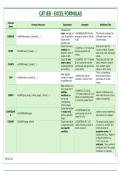
CAT IEB - EXCEL FORMULAS
Formula
Formula Structure Explanation Examples Additional Tips
Name
Calculates the
mean (average) of =AVERAGE(B1:B3) finds the This formula computes the
AVERAGE =AVERAGE(number1, [number2], ...) a set of numbers or average of values in cells B1 arithmetic mean of the
values within to B3. numeric values.
specified cells.
Counts how many Only counts cells that
=COUNT(1, 2, "Hi") returns 2
numbers are contain numbers; it ignores
COUNT =COUNT(value1, [value2], ...) because it ignores text
present in a list of text, empty cells, and logical
values.
values or cells. values.
Counts all non- =COUNTA(1, "Hi", "") returns Counts any cell that is not
empty values, 2 as it counts the number blank, whether it contains
COUNTA =COUNTA(value1, [value2], ...)
including both text and the text, but ignores the text, numbers, logical
and numbers. empty string. values, or error values.
This is a fundamental
Adds together
=SUM(A1:A5) adds all formula used for basic
SUM =SUM(number1, [number2], ...) numbers or values
numbers in cells A1 to A5. summation of numeric
in specified cells.
values.
Adds numbers in a
sum_range only if
=SUMIFS(C1:C5, A1:A5,
multiple Ideal for conditional sums
">5") adds numbers in C1:C5
SUMIFS =SUMIFS(sum_range, criteria_range1, criteria1, ...) conditions are when more than one criteria
where corresponding values
met across needs to be satisfied.
in A1:A5 are greater than 5.
corresponding
criteria_ranges.
Counts the number
=COUNTBLANK(A1:A5)
COUNTBLAN of empty cells Useful for quickly identifying
=COUNTBLANK(range) counts empty cells in the
K within a specified blank entries in a dataset.
range A1 to A5.
range.
COUNTIF =COUNTIF(range, criteria) Counts cells within =COUNTIF(A1:A5, ">5") The range must be a group
a range that satisfy counts how many values in of cells (e.g., A1:A10). The
one specific A1:A5 are over 5. criteria must be in
condition. quotation marks if it
includes text (e.g., "Apples")
or logical symbols (e.g.,
">5"). You can use
wildcards: * (any number of
characters) and ? (any single
character). For example,
1
GR 11-12
, =COUNTIF(A1:A10, "A*")
counts anything starting
with "A". To count blank
cells, use "" as criteria (e.g.,
=COUNTIF(A1:A10, "")). You
cannot use two
conditions in COUNTIF; for
that, use COUNTIFS.
Counts cells only if
=COUNTIFS(A1:A5, ">5",
multiple
B1:B5, "<10") counts rows Designed for counting based
specified
COUNTIFS =COUNTIFS(range1, criteria1, range2, criteria2, ...) where values in A1:A5 are on several criteria
conditions are
greater than 5 AND values in simultaneously.
true across
B1:B5 are less than 10.
different ranges.
Rounds a number
Use 0 for num_digits to
to a specified =ROUND(3.14159, 2) returns
ROUND =ROUND(number, num_digits) round to the nearest whole
num_digits of 3.14.
number.
decimal places.
Always rounds a
Use when you explicitly want
ROUNDDOW number down, =ROUNDDOWN(3.99, 0)
=ROUNDDOWN(number, num_digits) to ensure no rounding up
N regardless of the returns 3.
occurs.
decimal value.
Always rounds a
number up, even if =ROUNDUP(3.01, 0) returns Use when you explicitly want
ROUNDUP =ROUNDUP(number, num_digits)
the decimal value 4. to round everything up.
is very small.
Raises a number to =POWER(2, 3) returns 8 This function performs
POWER =POWER(number, power)
a specified power. (which means 2³). exponentiation.
You must have 3 parts
inside IF: the condition, the
=IF(A1>50, "Pass", "Fail") value for true, and the value
Checks a
returns "Pass" if A1 is more for false. Use quotation
=IF(logical_test, value_if_true, value_if_false) logical_test
than 50, otherwise "Fail". marks for text results
(condition); if it is
=IF(A2="Apple", 1, 0) returns (e.g., "Pass"). Use numbers
IF TRUE, it returns
1 if A2 contains "Apple", else without quotes (e.g., 50,
value_if_true; if it is
0. =IF(C2="", "Missing", not "50"). The logical test
FALSE, it returns
"Done") returns "Missing" if uses operators like =, >, <,
value_if_false.
C2 is blank, else "Done". >=, <=, <>. A common
mistake is forgetting the
value_if_false part.
IFS =IFS(condition1, value1, condition2, value2, …) Checks multiple =IFS(A1>=80, "A", A1>=70, Ideal for 3 or more
conditions in "B", A1>=60, "C", A1<60, conditions, providing a
order and returns "Fail") assigns grades based cleaner alternative to
2
GR 11-12
, complex nested IFs. You
must write pairs:
(condition, result). Unlike IF,
it does not have a default
the result for the
"else" value; if no condition
first condition
is true, it returns #N/A. To
that is TRUE. It on score ranges.
avoid #N/A, always add a
acts like multiple
final condition like TRUE,
IFs in one.
"Other" to catch all
remaining cases. Conditions
are tested sequentially, so
order matters.
Involves placing IF
functions inside Always close each IF with
other IF functions a ). You can go up to 64
to handle multiple nested IFs, but 3–5 are
sequential generally more readable.
conditions. Excel =IF(A1>=80, "A", Write conditions in order
evaluates the first IF(A1>=70, "B", IF(A1>=60, from most specific to
=IF(condition1, result1, IF(condition2, result2, ... IF(conditionN,
NESTED IFs IF; if TRUE, it gives "C", "Fail"))) assigns grades most general to ensure
resultN, "else")))
that result; if by checking conditions in correct evaluation. Use
FALSE, it moves to descending order. quotation marks around text
the next IF, results. A common mistake
repeating until one is missing a closing bracket
is TRUE or the final or putting conditions in the
value_if_false is wrong order.
returned.
It automatically updates to
the current date each time
Returns the =TODAY() could return 2025- the worksheet recalculates
TODAY =TODAY()
current date. 05-10. or is opened. No manual
date entry is needed as it
updates dynamically.
Useful for combining date
Creates a valid =DATE(2025, 5, 10) creates components from different
date from May 10, 2025. cells or numbers into a
DATE =DATE(year, month, day) individual year, =DATE(YEAR(TODAY()),12,31 single date value. Requires
month, and day ) can be used to find the last the year, month, and day
numbers. day of the current year. inputs to be in number
format.
DAYS =DAYS(end_date, start_date) Returns the =DAYS("2025-05-20", "2025- Use date cells or date values
number of days 05-10") returns 10. in "YYYY-MM-DD" format.
between two Entering the end_date
3
GR 11-12
Formula
Formula Structure Explanation Examples Additional Tips
Name
Calculates the
mean (average) of =AVERAGE(B1:B3) finds the This formula computes the
AVERAGE =AVERAGE(number1, [number2], ...) a set of numbers or average of values in cells B1 arithmetic mean of the
values within to B3. numeric values.
specified cells.
Counts how many Only counts cells that
=COUNT(1, 2, "Hi") returns 2
numbers are contain numbers; it ignores
COUNT =COUNT(value1, [value2], ...) because it ignores text
present in a list of text, empty cells, and logical
values.
values or cells. values.
Counts all non- =COUNTA(1, "Hi", "") returns Counts any cell that is not
empty values, 2 as it counts the number blank, whether it contains
COUNTA =COUNTA(value1, [value2], ...)
including both text and the text, but ignores the text, numbers, logical
and numbers. empty string. values, or error values.
This is a fundamental
Adds together
=SUM(A1:A5) adds all formula used for basic
SUM =SUM(number1, [number2], ...) numbers or values
numbers in cells A1 to A5. summation of numeric
in specified cells.
values.
Adds numbers in a
sum_range only if
=SUMIFS(C1:C5, A1:A5,
multiple Ideal for conditional sums
">5") adds numbers in C1:C5
SUMIFS =SUMIFS(sum_range, criteria_range1, criteria1, ...) conditions are when more than one criteria
where corresponding values
met across needs to be satisfied.
in A1:A5 are greater than 5.
corresponding
criteria_ranges.
Counts the number
=COUNTBLANK(A1:A5)
COUNTBLAN of empty cells Useful for quickly identifying
=COUNTBLANK(range) counts empty cells in the
K within a specified blank entries in a dataset.
range A1 to A5.
range.
COUNTIF =COUNTIF(range, criteria) Counts cells within =COUNTIF(A1:A5, ">5") The range must be a group
a range that satisfy counts how many values in of cells (e.g., A1:A10). The
one specific A1:A5 are over 5. criteria must be in
condition. quotation marks if it
includes text (e.g., "Apples")
or logical symbols (e.g.,
">5"). You can use
wildcards: * (any number of
characters) and ? (any single
character). For example,
1
GR 11-12
, =COUNTIF(A1:A10, "A*")
counts anything starting
with "A". To count blank
cells, use "" as criteria (e.g.,
=COUNTIF(A1:A10, "")). You
cannot use two
conditions in COUNTIF; for
that, use COUNTIFS.
Counts cells only if
=COUNTIFS(A1:A5, ">5",
multiple
B1:B5, "<10") counts rows Designed for counting based
specified
COUNTIFS =COUNTIFS(range1, criteria1, range2, criteria2, ...) where values in A1:A5 are on several criteria
conditions are
greater than 5 AND values in simultaneously.
true across
B1:B5 are less than 10.
different ranges.
Rounds a number
Use 0 for num_digits to
to a specified =ROUND(3.14159, 2) returns
ROUND =ROUND(number, num_digits) round to the nearest whole
num_digits of 3.14.
number.
decimal places.
Always rounds a
Use when you explicitly want
ROUNDDOW number down, =ROUNDDOWN(3.99, 0)
=ROUNDDOWN(number, num_digits) to ensure no rounding up
N regardless of the returns 3.
occurs.
decimal value.
Always rounds a
number up, even if =ROUNDUP(3.01, 0) returns Use when you explicitly want
ROUNDUP =ROUNDUP(number, num_digits)
the decimal value 4. to round everything up.
is very small.
Raises a number to =POWER(2, 3) returns 8 This function performs
POWER =POWER(number, power)
a specified power. (which means 2³). exponentiation.
You must have 3 parts
inside IF: the condition, the
=IF(A1>50, "Pass", "Fail") value for true, and the value
Checks a
returns "Pass" if A1 is more for false. Use quotation
=IF(logical_test, value_if_true, value_if_false) logical_test
than 50, otherwise "Fail". marks for text results
(condition); if it is
=IF(A2="Apple", 1, 0) returns (e.g., "Pass"). Use numbers
IF TRUE, it returns
1 if A2 contains "Apple", else without quotes (e.g., 50,
value_if_true; if it is
0. =IF(C2="", "Missing", not "50"). The logical test
FALSE, it returns
"Done") returns "Missing" if uses operators like =, >, <,
value_if_false.
C2 is blank, else "Done". >=, <=, <>. A common
mistake is forgetting the
value_if_false part.
IFS =IFS(condition1, value1, condition2, value2, …) Checks multiple =IFS(A1>=80, "A", A1>=70, Ideal for 3 or more
conditions in "B", A1>=60, "C", A1<60, conditions, providing a
order and returns "Fail") assigns grades based cleaner alternative to
2
GR 11-12
, complex nested IFs. You
must write pairs:
(condition, result). Unlike IF,
it does not have a default
the result for the
"else" value; if no condition
first condition
is true, it returns #N/A. To
that is TRUE. It on score ranges.
avoid #N/A, always add a
acts like multiple
final condition like TRUE,
IFs in one.
"Other" to catch all
remaining cases. Conditions
are tested sequentially, so
order matters.
Involves placing IF
functions inside Always close each IF with
other IF functions a ). You can go up to 64
to handle multiple nested IFs, but 3–5 are
sequential generally more readable.
conditions. Excel =IF(A1>=80, "A", Write conditions in order
evaluates the first IF(A1>=70, "B", IF(A1>=60, from most specific to
=IF(condition1, result1, IF(condition2, result2, ... IF(conditionN,
NESTED IFs IF; if TRUE, it gives "C", "Fail"))) assigns grades most general to ensure
resultN, "else")))
that result; if by checking conditions in correct evaluation. Use
FALSE, it moves to descending order. quotation marks around text
the next IF, results. A common mistake
repeating until one is missing a closing bracket
is TRUE or the final or putting conditions in the
value_if_false is wrong order.
returned.
It automatically updates to
the current date each time
Returns the =TODAY() could return 2025- the worksheet recalculates
TODAY =TODAY()
current date. 05-10. or is opened. No manual
date entry is needed as it
updates dynamically.
Useful for combining date
Creates a valid =DATE(2025, 5, 10) creates components from different
date from May 10, 2025. cells or numbers into a
DATE =DATE(year, month, day) individual year, =DATE(YEAR(TODAY()),12,31 single date value. Requires
month, and day ) can be used to find the last the year, month, and day
numbers. day of the current year. inputs to be in number
format.
DAYS =DAYS(end_date, start_date) Returns the =DAYS("2025-05-20", "2025- Use date cells or date values
number of days 05-10") returns 10. in "YYYY-MM-DD" format.
between two Entering the end_date
3
GR 11-12