
TASK 1:
Task 1: Magazine front cover
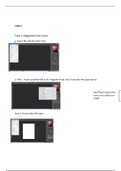
1. Select file and the select new
2. Here I have saved the file as SC-magazine front over I have also the page layout
Here I have entered the
front covers width and
height
Step 3: I have select file open
, Step 4: Now here I have chosen the image I want to use in my
magazine cover
Step 5: I am presented with this so I will use the moving tool to
drag this onto the SC-magazine tab.
Step 6: I have now moved the photo onto the SC-magazine tab
using the move tool so I will delete the other tab and resize this
image.
7. Resizing image select on the layer of the image
8: Select edit tab and select free transform now you can use
your pointer to resize the image.
9: Here I have resized the image
, 10: use of quick selection tool click and drag on your images
background until you have it entirely selected
11: select paint bucket tool
12: Select here to choose the colour for the background
13: now simply click inside your outlined area to change the
colour of the background now selected (CTRL) (D) on your
keyboard to deslect eveyrhting and you have achieved your
background colour
14: now I have used the quick selection tool to select outside the
image .
Task 1: Magazine front cover
1. Select file and the select new
2. Here I have saved the file as SC-magazine front over I have also the page layout
Here I have entered the
front covers width and
height
Step 3: I have select file open
, Step 4: Now here I have chosen the image I want to use in my
magazine cover
Step 5: I am presented with this so I will use the moving tool to
drag this onto the SC-magazine tab.
Step 6: I have now moved the photo onto the SC-magazine tab
using the move tool so I will delete the other tab and resize this
image.
7. Resizing image select on the layer of the image
8: Select edit tab and select free transform now you can use
your pointer to resize the image.
9: Here I have resized the image
, 10: use of quick selection tool click and drag on your images
background until you have it entirely selected
11: select paint bucket tool
12: Select here to choose the colour for the background
13: now simply click inside your outlined area to change the
colour of the background now selected (CTRL) (D) on your
keyboard to deslect eveyrhting and you have achieved your
background colour
14: now I have used the quick selection tool to select outside the
image .


