

1. MANAGING HARDWARE DEVICES
1.1 Identify Hardware Functions
What is Hardware?Physical components of a computer system that can be touched.
Key Hardware Components and Functions:
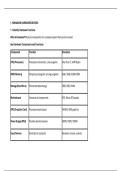
Component Function Examples
CPU (Processor) Processes instructions, runs programs Intel Core i7, AMD Ryzen
RAM (Memory) Temporary storage for running programs 8GB, 16GB, 32GB DDR4
Storage (Hard Drive) Permanent data storage HDD, SSD, NVMe
Motherboard Connects all components ATX, Micro-ATX boards
GPU (Graphics Card) Processes visual output NVIDIA, AMD graphics
Power Supply (PSU) Provides electrical power 500W, 750W, 1000W
Input Devices Send data to computer Keyboard, mouse, scanner
,Component Function Examples
Output Devices Display computer output Monitor, printer, speakers
Network Interface Connects to network Ethernet card, Wi-Fi adapter
Cooling System Prevents overheating Fans, liquid cooling, heat sinks
Hardware Function Categories:
Category Purpose Components
Processing Execute instructions CPU, GPU
Storage Save data RAM, SSD, HDD
Input Receive user data Keyboard, mouse, microphone
Output Display results Monitor, printer, speakers
Communication Network connectivity Network card, Wi-Fi adapter
,1.2 Perform Hardware Installations
Pre-Installation Steps:
1. Gather Tools:
• Screwdriver set (Phillips, flathead)
• Anti-static strap (prevents electrical damage)
• Cable ties
• Flashlight
2. Prepare Workspace:
• Clean, flat surface
• Good lighting
• Anti-static mat (optional)
3. Safety Precautions:
• Unplug power cable
• Remove battery (if laptop)
• Press power button to drain residual charge
• Wear anti-static strap
Installing Common Hardware:
1. Installing RAM:
, text
Step 1: Open RAM slots (push clips outward)
Step 2: Align RAM notch with slot ridge
Step 3: Press down firmly until clips lock
Step 4: Verify RAM is seated properly
2. Installing SSD/HDD:
text
Step 1: Locate drive bay
Step 2: Slide drive into bay
Step 3: Secure with screws
Step 4: Connect SATA data cable
Step 5: Connect SATA power cable
3. Installing GPU:
text
Step 1: Remove PCIe slot covers
Step 2: Open PCIe slot clip
Step 3: Align GPU with slot
Step 4: Press down firmly
1.1 Identify Hardware Functions
What is Hardware?Physical components of a computer system that can be touched.
Key Hardware Components and Functions:
Component Function Examples
CPU (Processor) Processes instructions, runs programs Intel Core i7, AMD Ryzen
RAM (Memory) Temporary storage for running programs 8GB, 16GB, 32GB DDR4
Storage (Hard Drive) Permanent data storage HDD, SSD, NVMe
Motherboard Connects all components ATX, Micro-ATX boards
GPU (Graphics Card) Processes visual output NVIDIA, AMD graphics
Power Supply (PSU) Provides electrical power 500W, 750W, 1000W
Input Devices Send data to computer Keyboard, mouse, scanner
,Component Function Examples
Output Devices Display computer output Monitor, printer, speakers
Network Interface Connects to network Ethernet card, Wi-Fi adapter
Cooling System Prevents overheating Fans, liquid cooling, heat sinks
Hardware Function Categories:
Category Purpose Components
Processing Execute instructions CPU, GPU
Storage Save data RAM, SSD, HDD
Input Receive user data Keyboard, mouse, microphone
Output Display results Monitor, printer, speakers
Communication Network connectivity Network card, Wi-Fi adapter
,1.2 Perform Hardware Installations
Pre-Installation Steps:
1. Gather Tools:
• Screwdriver set (Phillips, flathead)
• Anti-static strap (prevents electrical damage)
• Cable ties
• Flashlight
2. Prepare Workspace:
• Clean, flat surface
• Good lighting
• Anti-static mat (optional)
3. Safety Precautions:
• Unplug power cable
• Remove battery (if laptop)
• Press power button to drain residual charge
• Wear anti-static strap
Installing Common Hardware:
1. Installing RAM:
, text
Step 1: Open RAM slots (push clips outward)
Step 2: Align RAM notch with slot ridge
Step 3: Press down firmly until clips lock
Step 4: Verify RAM is seated properly
2. Installing SSD/HDD:
text
Step 1: Locate drive bay
Step 2: Slide drive into bay
Step 3: Secure with screws
Step 4: Connect SATA data cable
Step 5: Connect SATA power cable
3. Installing GPU:
text
Step 1: Remove PCIe slot covers
Step 2: Open PCIe slot clip
Step 3: Align GPU with slot
Step 4: Press down firmly


