
CAT PRATICAL EXAM SCOPE
File Management
Gr 10-12 skills
[ ] Use File Explorer to manage File(s) and Folder(s).
[ ] Apply correct conventions for File Names.
[ ] Understand and identify File Extensions.
[ ] Use File Paths to locate specific files.
[ ] Create, Rename, Move, and Copy files and folders.
[ ] Modify Layout of the file list to change displayed details.
[ ] Organize files using Sort by (ascending/descending) and Group by.
[ ] Add Columns to the explorer view.
[ ] Toggle the visibility of File Name Extensions and Hidden Items.
[ ] Perform Searching for files and folders using wildcards.
[ ] Open a file using a program other than the default program.
[ ] Manage deleted data using the Recycle Bin.
[ ] Manage Compressed Files / Folders by using Compress and Extract All.
[ ] Review File Properties including Type of File, Opens With, Location, and Size.
[ ] Check file Dates (Created, Modified, Accessed) and Attributes (Read-only, Hidden).
[ ] Examine specific File Properties based on type: Description (Title, Subject, Comments)
and Origin (Authors, Producers, Publisher).
[ ] View Image metadata (Dimensions, Weight, Width, Resolution, GPS) and Media details
(Artists, Album, Year, Length).
[ ] Manage file history through Previous Versions and secure data by using Password
Protect.
[ ] Manage Windows Operating System features like Quick Launch Icons and Desktop
Shortcuts.
[ ] Use Account Options to Sign out, Lock, or Switch User.
[ ] Perform Personalisation of the Background, Lock Screen, and Colours.
[ ] Capture information using Screenshots (Snipping Tool or Print Screen).
[ ] Perform software maintenance by using Install or Uninstall Application/Software.
[ ] Optimize storage using Disk Clean-up and Storage Sense.
[ ] Perform system maintenance by Updating Windows Device Drivers and using Task
Scheduler.
[ ] Execute data safety protocols by Backing up Files to an External Hard drive.
[ ] Manage connectivity settings for Wi-Fi, Airplane Mode, Mobile Hotspots, and Bluetooth.
[ ] Manage Printing, including setting the Default Printer and handling the Printer Queue.
[ ] Update Time and Language Settings (Date & Time, Region, Speech).
[ ] Apply Ease of Access Functionality such as the Narrator, Magnifier, and High Contrast.
[ ] Interact with Digital Virtual Assistants like Cortana, Google Assistant, or Siri.
[ ] Configure Windows Settings for System (Display, Notifications, Power), Privacy (Location,
Camera), and Gaming (Game Mode, DVR).
[ ] Manage Update & Security through Windows Update, Recovery, and Backup.
[ ] Link mobile devices using Phone settings for Android or iPhone.
[ ] Access online/offline help including FAQs for troubleshooting.
, Word
Gr 10-12
Workspace & Document Management
[ ] Navigate the workspace, ribbons, tabs, and menus.
[ ] Perform Document Management: Open new and existing documents, close, save, and
save as.
[ ] Utilize Templates, including using inbuilt templates and saving documents as templates.
[ ] Input data from various file formats such as .txt, .csv, and .rtf.
[ ] Manage Printing using basic and advanced options, including range of pages, odd or
even, print quality, and pages per sheet.
[ ] Protect documents, inspect documents, and view version history.
[ ] Export documents as PDF and use Share options like email or presenting online.
[ ] Access online/offline help and FAQs.
Editing & Basic Formatting
[ ] Select data using the keyboard or mouse.
[ ] Use the Clipboard for Cut, Copy, Paste, Undo, and the Format Painter.
[ ] Use Paste special for specific data formatting.
[ ] Apply Font Formatting: type, style, size, colour, highlight, bold, underline, italic,
subscript, superscript, clear formatting, and change case.
[ ] Insert Symbols and Equations.
[ ] Use Editing tools: Find and Replace (including advanced options), and Select.
Paragraph Formatting & Styles
[ ] Apply Bullets and numbering, including customized bullets, outline numbering, and
multi-level lists.
[ ] Manage Indents (including hanging indents), aligning, and spacing.
[ ] Apply Borders, shading, and use sorting or formatting symbols.
[ ] Set and customize Tabs and spacing.
[ ] Control Pagination: Widow/orphan control, Keep with Next, Keep Lines together, and
Page Break before.
[ ] Use and edit Styles: Apply quick styles, edit existing heading/paragraph styles, or
create a new style.
Layout, Sections & Tables
[ ] Configure Page setup: Customize margins, orientation, size, columns, line numbers,
and hyphenation.
[ ] Manage Breaks: Page breaks, column breaks, and Section breaks (including linking
and delinking sections).
[ ] Insert a Cover page or blank page.
[ ] Insert and design Tables: Manage Table properties, styles, borders, and shading.
[ ] Manage Table Layout: Rows and columns, header rows, merging and splitting cells,
and cell size/distribution.
[ ] Format Table Text: Adjust alignment, direction, and toggle gridlines.
[ ] Work with Table Data: Sorting, converting to text, and using formulae.
Illustrations, Links & Objects
[ ] Insert and manipulate Illustrations: Pictures, shapes, icons, SmartArt, Charts, and
Screenshots.
[ ] Arrange objects: Position, wrap text, bring forward/send backward, align, group, and
rotate.
[ ] Use Links: Create Hyperlinks, bookmarks, and cross-references.
[ ] Add Text objects: Textboxes, Word Art, Quick parts, and drop caps.
Page Design, Headers & Footers
[ ] Design Page Backgrounds: Watermarks, page colour, and page borders.
[ ] Apply Document formatting: Themes, Colours, Fonts, and Setting up defaults.
[ ] Configure Headers & Footers: Insert date, author, file path, filename, and document
title.
[ ] Manage Page numbers: Different first page, odd/even, starting from a specific
number, and numbering formats.
Reviewing & References
[ ] Use Proofing tools: Spelling, grammar, thesaurus, word counts, and AutoCorrect.
[ ] Use Reviewing features: Track changes, show mark-up, reviewing pane, and
accepting/rejecting changes.
[ ] Compare versions and use Accessibility or Language/Translate tools.
[ ] Protect documents by blocking authors or restricting editing.
[ ] Create References: Table of contents, Table of figures, and Indexes.
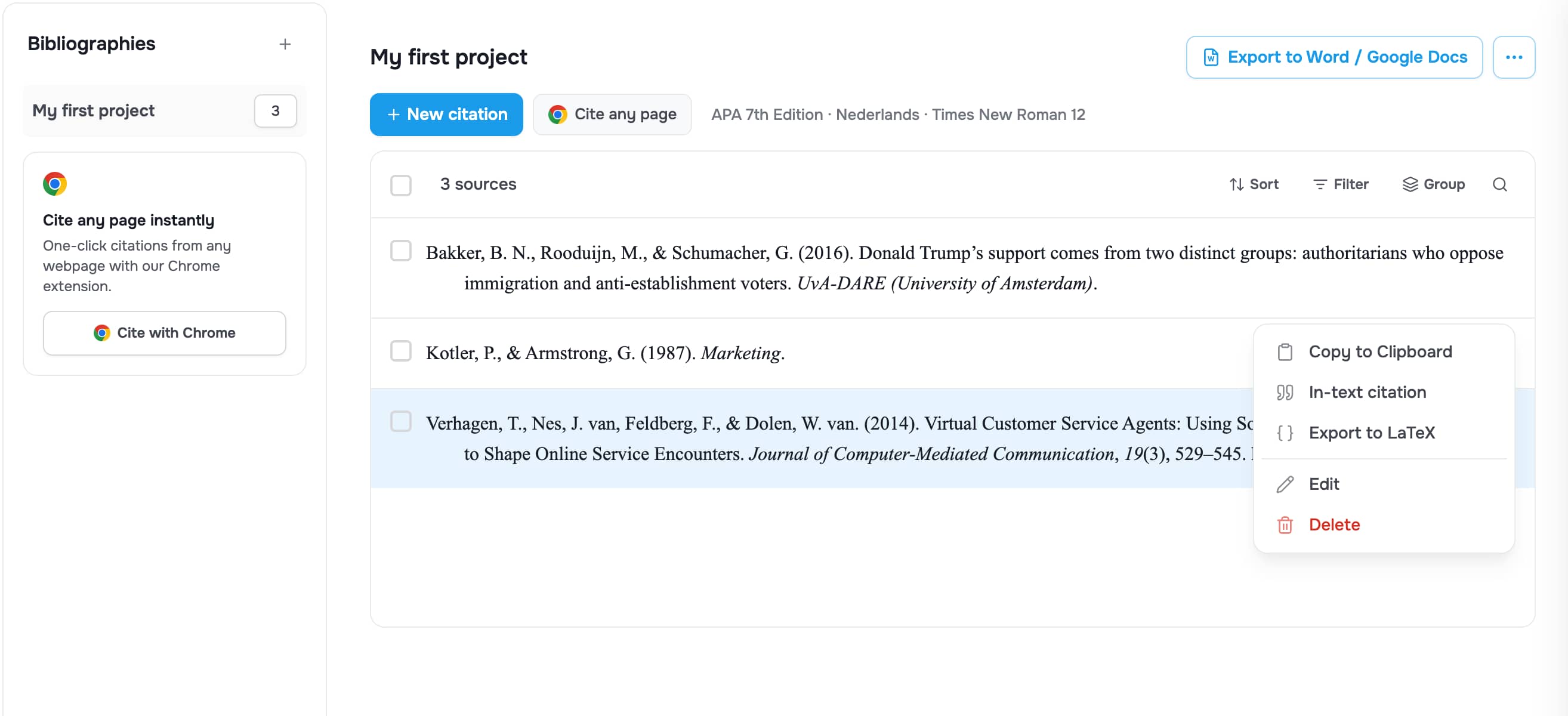
[ ] Manage Citations & Bibliography: Insert citations, manage sources, and select styles.
[ ] Insert Footnotes, endnotes, captions, and Table of Authorities.
File Management
Gr 10-12 skills
[ ] Use File Explorer to manage File(s) and Folder(s).
[ ] Apply correct conventions for File Names.
[ ] Understand and identify File Extensions.
[ ] Use File Paths to locate specific files.
[ ] Create, Rename, Move, and Copy files and folders.
[ ] Modify Layout of the file list to change displayed details.
[ ] Organize files using Sort by (ascending/descending) and Group by.
[ ] Add Columns to the explorer view.
[ ] Toggle the visibility of File Name Extensions and Hidden Items.
[ ] Perform Searching for files and folders using wildcards.
[ ] Open a file using a program other than the default program.
[ ] Manage deleted data using the Recycle Bin.
[ ] Manage Compressed Files / Folders by using Compress and Extract All.
[ ] Review File Properties including Type of File, Opens With, Location, and Size.
[ ] Check file Dates (Created, Modified, Accessed) and Attributes (Read-only, Hidden).
[ ] Examine specific File Properties based on type: Description (Title, Subject, Comments)
and Origin (Authors, Producers, Publisher).
[ ] View Image metadata (Dimensions, Weight, Width, Resolution, GPS) and Media details
(Artists, Album, Year, Length).
[ ] Manage file history through Previous Versions and secure data by using Password
Protect.
[ ] Manage Windows Operating System features like Quick Launch Icons and Desktop
Shortcuts.
[ ] Use Account Options to Sign out, Lock, or Switch User.
[ ] Perform Personalisation of the Background, Lock Screen, and Colours.
[ ] Capture information using Screenshots (Snipping Tool or Print Screen).
[ ] Perform software maintenance by using Install or Uninstall Application/Software.
[ ] Optimize storage using Disk Clean-up and Storage Sense.
[ ] Perform system maintenance by Updating Windows Device Drivers and using Task
Scheduler.
[ ] Execute data safety protocols by Backing up Files to an External Hard drive.
[ ] Manage connectivity settings for Wi-Fi, Airplane Mode, Mobile Hotspots, and Bluetooth.
[ ] Manage Printing, including setting the Default Printer and handling the Printer Queue.
[ ] Update Time and Language Settings (Date & Time, Region, Speech).
[ ] Apply Ease of Access Functionality such as the Narrator, Magnifier, and High Contrast.
[ ] Interact with Digital Virtual Assistants like Cortana, Google Assistant, or Siri.
[ ] Configure Windows Settings for System (Display, Notifications, Power), Privacy (Location,
Camera), and Gaming (Game Mode, DVR).
[ ] Manage Update & Security through Windows Update, Recovery, and Backup.
[ ] Link mobile devices using Phone settings for Android or iPhone.
[ ] Access online/offline help including FAQs for troubleshooting.
, Word
Gr 10-12
Workspace & Document Management
[ ] Navigate the workspace, ribbons, tabs, and menus.
[ ] Perform Document Management: Open new and existing documents, close, save, and
save as.
[ ] Utilize Templates, including using inbuilt templates and saving documents as templates.
[ ] Input data from various file formats such as .txt, .csv, and .rtf.
[ ] Manage Printing using basic and advanced options, including range of pages, odd or
even, print quality, and pages per sheet.
[ ] Protect documents, inspect documents, and view version history.
[ ] Export documents as PDF and use Share options like email or presenting online.
[ ] Access online/offline help and FAQs.
Editing & Basic Formatting
[ ] Select data using the keyboard or mouse.
[ ] Use the Clipboard for Cut, Copy, Paste, Undo, and the Format Painter.
[ ] Use Paste special for specific data formatting.
[ ] Apply Font Formatting: type, style, size, colour, highlight, bold, underline, italic,
subscript, superscript, clear formatting, and change case.
[ ] Insert Symbols and Equations.
[ ] Use Editing tools: Find and Replace (including advanced options), and Select.
Paragraph Formatting & Styles
[ ] Apply Bullets and numbering, including customized bullets, outline numbering, and
multi-level lists.
[ ] Manage Indents (including hanging indents), aligning, and spacing.
[ ] Apply Borders, shading, and use sorting or formatting symbols.
[ ] Set and customize Tabs and spacing.
[ ] Control Pagination: Widow/orphan control, Keep with Next, Keep Lines together, and
Page Break before.
[ ] Use and edit Styles: Apply quick styles, edit existing heading/paragraph styles, or
create a new style.
Layout, Sections & Tables
[ ] Configure Page setup: Customize margins, orientation, size, columns, line numbers,
and hyphenation.
[ ] Manage Breaks: Page breaks, column breaks, and Section breaks (including linking
and delinking sections).
[ ] Insert a Cover page or blank page.
[ ] Insert and design Tables: Manage Table properties, styles, borders, and shading.
[ ] Manage Table Layout: Rows and columns, header rows, merging and splitting cells,
and cell size/distribution.
[ ] Format Table Text: Adjust alignment, direction, and toggle gridlines.
[ ] Work with Table Data: Sorting, converting to text, and using formulae.
Illustrations, Links & Objects
[ ] Insert and manipulate Illustrations: Pictures, shapes, icons, SmartArt, Charts, and
Screenshots.
[ ] Arrange objects: Position, wrap text, bring forward/send backward, align, group, and
rotate.
[ ] Use Links: Create Hyperlinks, bookmarks, and cross-references.
[ ] Add Text objects: Textboxes, Word Art, Quick parts, and drop caps.
Page Design, Headers & Footers
[ ] Design Page Backgrounds: Watermarks, page colour, and page borders.
[ ] Apply Document formatting: Themes, Colours, Fonts, and Setting up defaults.
[ ] Configure Headers & Footers: Insert date, author, file path, filename, and document
title.
[ ] Manage Page numbers: Different first page, odd/even, starting from a specific
number, and numbering formats.
Reviewing & References
[ ] Use Proofing tools: Spelling, grammar, thesaurus, word counts, and AutoCorrect.
[ ] Use Reviewing features: Track changes, show mark-up, reviewing pane, and
accepting/rejecting changes.
[ ] Compare versions and use Accessibility or Language/Translate tools.
[ ] Protect documents by blocking authors or restricting editing.
[ ] Create References: Table of contents, Table of figures, and Indexes.
[ ] Manage Citations & Bibliography: Insert citations, manage sources, and select styles.
[ ] Insert Footnotes, endnotes, captions, and Table of Authorities.