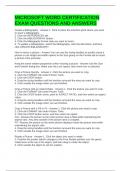
MICROSOFT WORD CERTIFICATION
EXAM QUESTIONS AND ANSWERS
Create a Bibliography - Answer-1. Click to place the insertion point where you want
to insert a bibliography.
2. Click the REFERENCES tab.
3. Click the BIBLIOGRAPHY button.
4. Click the bibliography format style you want to insert.
5. To update a bibliography, select the bibliography, click the tab button, and then
click UPDATE BIBLIOGRAPHY.
How to resize a picture - Answer-You can use the sizing handles to quickly resize a
picture or use height and width options in the Size group on the Format tab to resize
a picture more precisely.
Keep the same relative proportions when resizing a picture - Answer-Use the Size
and Position dialog box. Make sure the Lock aspect ratio check box is selected.
Crop a Picture Quickly - Answer-1. Click the picture you want to crop.
2. Click the FORMAT tab under Picture Tools.
3. Click the CROP button.
4. Drag the sizing handles until the borders surround the area you want to crop.
5. Click outside the image when you are finished.
Crop a Picture with an Aspect Ratio - Answer-1. Click the picture you want to crop.
2. Click the FORMAT tab under Picture Tools
3. Click the CROP button arrow, point to ASPECT RATIO, and then select an aspect
ration.
4. Drag the sizing handles until the borders surround the area you want to crop.
5. Click outside the image when you are finished.
Crop a Picture with a Fill or Fit - Answer-1. Click the picture you want to crop
2. Click the FORMAT tab under Picture Tools.
3. Click the CROP button arrow, and then select an option:
FILL: Resizes the picture so the entire picture area is filled while maintaining the
aspect ratio. Any area outside of the picture area is cropped.
FIT: Resizes the picture so the entire picture displays inside the picture area while
maintaining the aspect ratio.
4. Drag the sizing handles until the borders surround the area you want to crop.
5. Click outside the image when you are finished.
Rotate a Picture - Answer-1. Click the object you want to rotate.
2. Position the pointer (which changes to the Free Rotate pointer) over the green
rotate lever at the top of the object, and then drag to rotate the object.
3. Click outside the object to set the rotation.
EXAM QUESTIONS AND ANSWERS
Create a Bibliography - Answer-1. Click to place the insertion point where you want
to insert a bibliography.
2. Click the REFERENCES tab.
3. Click the BIBLIOGRAPHY button.
4. Click the bibliography format style you want to insert.
5. To update a bibliography, select the bibliography, click the tab button, and then
click UPDATE BIBLIOGRAPHY.
How to resize a picture - Answer-You can use the sizing handles to quickly resize a
picture or use height and width options in the Size group on the Format tab to resize
a picture more precisely.
Keep the same relative proportions when resizing a picture - Answer-Use the Size
and Position dialog box. Make sure the Lock aspect ratio check box is selected.
Crop a Picture Quickly - Answer-1. Click the picture you want to crop.
2. Click the FORMAT tab under Picture Tools.
3. Click the CROP button.
4. Drag the sizing handles until the borders surround the area you want to crop.
5. Click outside the image when you are finished.
Crop a Picture with an Aspect Ratio - Answer-1. Click the picture you want to crop.
2. Click the FORMAT tab under Picture Tools
3. Click the CROP button arrow, point to ASPECT RATIO, and then select an aspect
ration.
4. Drag the sizing handles until the borders surround the area you want to crop.
5. Click outside the image when you are finished.
Crop a Picture with a Fill or Fit - Answer-1. Click the picture you want to crop
2. Click the FORMAT tab under Picture Tools.
3. Click the CROP button arrow, and then select an option:
FILL: Resizes the picture so the entire picture area is filled while maintaining the
aspect ratio. Any area outside of the picture area is cropped.
FIT: Resizes the picture so the entire picture displays inside the picture area while
maintaining the aspect ratio.
4. Drag the sizing handles until the borders surround the area you want to crop.
5. Click outside the image when you are finished.
Rotate a Picture - Answer-1. Click the object you want to rotate.
2. Position the pointer (which changes to the Free Rotate pointer) over the green
rotate lever at the top of the object, and then drag to rotate the object.
3. Click outside the object to set the rotation.