100% satisfaction guarantee Immediately available after payment Both online and in PDF No strings attached 4.2 TrustPilot
logo-home
Exam (elaborations)

Microsoft Word 2023 Certification Review exam 61 questions with 100% verified correct answers(verified for accuracy).docx

Rating
-
Sold
-
Pages
6
Grade
A
Uploaded on
30-09-2023
Written in
2023/2024

Sort table in ascending order. Table Tools > Layout > Sort Configure table so headings repeat on next page. Table Tools > Layout > Data > Repeat Header Row Create a table from text. Spread it across the entire width of the document. Insert > Table > Convert to Table > Auto Fit to Window Add a footnote. References > Insert Footnote` Cut and paste text. Home > Cut > Paste Add a diagram (SmartArt - Basic Chevron Process) Insert > Illustrations > SmartArt Add text "Draft" to the status property File > Properties > Advanced Properties > Status Display tab formatting symbols. File > Options > Display > Tab Characters Box page border (color/width) Design Tab > Page > Borders Configure text beneath a heading to wrap left of photo. Pic Tools Format > Arrange > Wrap Text > More Layout > Select Left Only Bookmark Insert > Link > Bookmark Hyperlink Insert > Link > Hyperlink Add symbol (within text) Insert > Symbol Adjust page margins (mirrored) Layout > Margin Add banded quote textbox. Insert > Textbox > Select Specific Style Update table of contents. References > Update Table (TOC) Insert a table of contents. References > TOC > Select Style Insert contents of a document located in the "My Documents" folder. Insert > Object > Text From File > Browse Inspect a document (Remove headers/footers/watermarks) File > Check For Issues Add soft round bevel (picture effect) Picture Tools > Format > Picture Effects > Bevel Move an image Drag and Drop Insert a picture from file Insert > Pictures Rearrange SmartArt Smart Art Tools > Design > Move up or Move Down Line Spacing Home > Paragraph > Line Spacing Options Cut/Paste (No Formatting) Home > Paste > Paste Special Format text (intense emphasis) Highlight Text > Home > Styles Insert banded header (not displayed on page one) Insert > Header > Different First Page Page background color. Design > Page Color Change text to 2 columns (spacing 0.3" between) Layout > Columns > More Columns > Adjust Spacing Insert a text wrapping page break. Layout > Breaks > Text Wrapping Insert a next page section break. Layout > Breaks > Next Page Format a list by applying a custom bullet (from file) Highlight Text > Home > Paragraph > Bullets > Define New Bullet Apply photocopy art effect Picture Tools Formatting > Artistic Effect > Photocopy Change the picture border color Picture Tools Formatting > Picture Border > Change Color/Weight Configure AutoCorrect to replace WI with Wisconsin File > Options > Proofing > AutoCorrect Options Decrease list levels Home > Decrease Indent Remove formatting from text Highlight Text > Home > Clear All Formatting Add text in the document to an existing numbered list. Click In List and Type Change the style set to casual. Design > Document Formatting > Casual Change line spacing to exactly 14pt Home > Paragraph Apply the strong style headings Highlight Text > Home > Styles Convert table to text (by tabs) Table Tools > Layout > Data > Convert to Text Move text but not the italics (Keep source formatting) Cut > Paste Special > Keep Source Formatting Change the color scheme of a diagram. SmartArt Tools > Design > Change Colors Add alternative text to table Right Click > Table Properties > Alt Text Covert table style. ( Grid 1 Light-Acct 2) Table Tools > Design > Table Styles Inspect and remove personal information. File > Check For Issues > Inspect Document Add a horizontal scroll shape and add text to it. Insert > Shapes> Stars and Banners > Draw Shape > Right Click > Add Text Use go to feature (Heading) Home > Editing > Find > Go To Add banded cover page (delete placeholder) Insert > Pages > Cover Page Apply a highlight to text (turquoise) Home > Font > Text Highlight Color Change numbers formatting (from 1-2-3 to A-B-C) Select List > Home > Paragraph > Numbering Reconfigure the list to start at 5. Right Click > Set Numbering Value Merge Cells Highlight > Right Click > Merge Adjust column width equally Click In Table > Table Tools > Layout > Distribute

Show more Read less
Institution
Course


Whoops! We can’t load your doc right now. Try again or contact support.

Written for

Institution
Study
Unknown
Course

Document information

Uploaded on
September 30, 2023
Number of pages
6
Written in
2023/2024
Type
Exam (elaborations)
Contains
Questions & answers

Subjects

Content preview

Microsoft Word 2023 Certification
Review exam |61 questions with 100%
verified correct answers(verified for
accuracy)
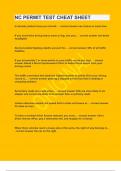
Sort table in ascending order. - answer Table Tools > Layout > Sort


Configure table so headings repeat on next page. - answer Table Tools > Layout > Data > Repeat
Header Row


Create a table from text. Spread it across the entire width of the document. - answer Insert >
Table > Convert to Table > Auto Fit to Window


Add a footnote. - answer References > Insert Footnote`


Cut and paste text. - answer Home > Cut > Paste


Add a diagram (SmartArt - Basic Chevron Process) - answer Insert > Illustrations > SmartArt


Add text "Draft" to the status property - answer File > Properties > Advanced Properties > Status


Display tab formatting symbols. - answer File > Options > Display > Tab Characters


Box page border (color/width) - answer Design Tab > Page > Borders


Configure text beneath a heading to wrap left of photo. - answer Pic Tools Format > Arrange >
Wrap Text > More Layout > Select Left Only

, Bookmark - answer Insert > Link > Bookmark


Hyperlink - answer Insert > Link > Hyperlink


Add symbol (within text) - answer Insert > Symbol


Adjust page margins (mirrored) - answer Layout > Margin


Add banded quote textbox. - answer Insert > Textbox > Select Specific Style


Update table of contents. - answer References > Update Table (TOC)


Insert a table of contents. - answer References > TOC > Select Style


Insert contents of a document located in the "My Documents" folder. - answer Insert > Object >
Text From File > Browse


Inspect a document (Remove headers/footers/watermarks) - answer File > Check For Issues


Add soft round bevel (picture effect) - answer Picture Tools > Format > Picture Effects > Bevel


Move an image - answer Drag and Drop


Insert a picture from file - answer Insert > Pictures


Rearrange SmartArt - answer Smart Art Tools > Design > Move up or Move Down
$14.49
Get access to the full document:

100% satisfaction guarantee
Immediately available after payment
Both online and in PDF
No strings attached


Also available in package deal

Get to know the seller

Seller avatar
Reputation scores are based on the amount of documents a seller has sold for a fee and the reviews they have received for those documents. There are three levels: Bronze, Silver and Gold. The better the reputation, the more your can rely on the quality of the sellers work.
BRAINBOOSTERS Chamberlain College Of Nursing
Follow You need to be logged in order to follow users or courses
Sold
648
Member since
2 year
Number of followers
250
Documents
22594
Last sold
2 days ago

In this page you will find all documents , flashcards and package deals offered by seller BRAINBOOSTERS

4.5

340 reviews

5
264
4
30
3
21
2
5
1
20

Recently viewed by you

Why students choose Stuvia

Created by fellow students, verified by reviews

Quality you can trust: written by students who passed their tests and reviewed by others who've used these notes.

Didn't get what you expected? Choose another document

No worries! You can instantly pick a different document that better fits what you're looking for.

Pay as you like, start learning right away

No subscription, no commitments. Pay the way you're used to via credit card and download your PDF document instantly.

Student with book image

“Bought, downloaded, and aced it. It really can be that simple.”

Alisha Student

Frequently asked questions