Session 1
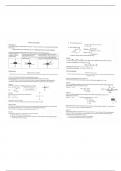
Start in data view.
ROws→ cases
Columns→ variables
Name the variables:
Click variable view: the rows represent variables here
Enter in the first cell “gender”
Indicate the TYpe, click left mouse button and drop down appears.
Only choose numeric.
Width refers to the number of digits that are displated in the data view for a particular variable, in this
case it is 8
Decimals, for gender we put it for 0, especially for categorical variables.
Label brief description for the variable, not needed.
Values: gender has qualitative and categorical variable that has valus.
Missing you can indicate what number indicates missing value. You can say 9 represents a
Missing value and click ok.
Columns represents the width of the column, if I increase it , the column in the date view increases.
Values for quantitative you leave as it is, for categorical you enter values.
Now we switch to the Data view.
How to delete and insert cases:
- Go to data view just add a new varibale
- Delete→ click on the number of the case and right click to delete.
- Green arrows -> undo arrows.
- Inser: right click on the case number and insert
- Delete: right click and “clear”
1
, Frequencies video
- I will make frequency distribution.
- It depend on the variable type what kind of graphical display you want to use.
- Go to DATA VIEW
- Analyze→ frequencies
Output
Frequency table:
PErcent vs valid percent. Percentage takes frequency out of the total, valid percentage takes the
frequency out of VALID CASES, without missing cases.
Cumulative percen add percentages up. Have a certain grade or lower.
Understand percentage, cumulative percentage etc.
Histogram
Check the peaks, understand what they mean and how it is distributed.
COmpare means video:
When you want to compare groups on one or more descripti ve statistics, on mean e.g. or medians
etc.
Analyze→ compare means, select statistics you want to compare with.
Dependent variable should always be quantitative variable. (on interval or ratio scale)
Options - on what statistic you want to compare
Sometimes you can have more categorical variables as conditions (IV)
If you have different conditions, you want to compare conditions.,
Data view-> analyze. Compare means, means , add an extra layer, add categorical layer.
Then we can compare between conditions such as Female or Male.
In his program IC are called layers.
2
Start in data view.
ROws→ cases
Columns→ variables
Name the variables:
Click variable view: the rows represent variables here
Enter in the first cell “gender”
Indicate the TYpe, click left mouse button and drop down appears.
Only choose numeric.
Width refers to the number of digits that are displated in the data view for a particular variable, in this
case it is 8
Decimals, for gender we put it for 0, especially for categorical variables.
Label brief description for the variable, not needed.
Values: gender has qualitative and categorical variable that has valus.
Missing you can indicate what number indicates missing value. You can say 9 represents a
Missing value and click ok.
Columns represents the width of the column, if I increase it , the column in the date view increases.
Values for quantitative you leave as it is, for categorical you enter values.
Now we switch to the Data view.
How to delete and insert cases:
- Go to data view just add a new varibale
- Delete→ click on the number of the case and right click to delete.
- Green arrows -> undo arrows.
- Inser: right click on the case number and insert
- Delete: right click and “clear”
1
, Frequencies video
- I will make frequency distribution.
- It depend on the variable type what kind of graphical display you want to use.
- Go to DATA VIEW
- Analyze→ frequencies
Output
Frequency table:
PErcent vs valid percent. Percentage takes frequency out of the total, valid percentage takes the
frequency out of VALID CASES, without missing cases.
Cumulative percen add percentages up. Have a certain grade or lower.
Understand percentage, cumulative percentage etc.
Histogram
Check the peaks, understand what they mean and how it is distributed.
COmpare means video:
When you want to compare groups on one or more descripti ve statistics, on mean e.g. or medians
etc.
Analyze→ compare means, select statistics you want to compare with.
Dependent variable should always be quantitative variable. (on interval or ratio scale)
Options - on what statistic you want to compare
Sometimes you can have more categorical variables as conditions (IV)
If you have different conditions, you want to compare conditions.,
Data view-> analyze. Compare means, means , add an extra layer, add categorical layer.
Then we can compare between conditions such as Female or Male.
In his program IC are called layers.
2