Reviewing documents – Module 3.1
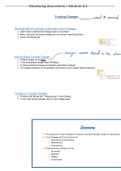
Tracking Changes
Working with the Changes indicated in Track Changes
• Used to leave a trail/record of changes made in a document.
• When a document has tracked changes you can choose to reject/accept them.
• Found in the Review tab
Manipulating Tracked Changes
• Tracked changes can be hidden
• To see all proposed changes, select All Markup
• To choose where the changes are indicated, select inline or balloons
• The changes indications can be specified in the Advance Track Changes Options dialog box.
Turning on Tracked Changes
• To leave a trail: Review tab > Tracking group > Track Changes
• To turn of the tracking changes, click on Track Changes again
Summary
• The purpose of Track Changes is to keep a record of changes made in a document.
• Track Changes let the user know of:
○ Alterations to formatting
○ Deleted text
○ Entered text
• Proposed track changes can be:
○ Accepted
○ Rejected
○ Hidden
○ Customized
, Working with long documents – Module 3.2
Bookmarks
• Used to mark places or specific sections of a text in a document, to ease navigation.
• place cursor where you want bookmark > insert tab, links group, bookmark > type in name > click add
• Use the "Go To" command (F5) to list the bookmarks in a document
Hyperlinks
• Can be used with bookmarks and heading-styled text, to rapidly move between sections of the document
• Allow you to jump to any heading in a document
• Select proposed hyperlink text > insert tab > links group > link > click place in this document > click on required
heading/bookmark > click ok
Cross-references
• Added to related information in a document.
• Info you choose to be added about the reference, is automatically added at the cursor's position.
• Thus, by default creating a hyperlink referring to the referenced item.
• Select text or position to add the cross-reference> insert tab > links group > cross-reference > click on insert > close
Manipulating line and page breaks
• Used to keep lines of text together, on one page. Done with pagination options ( in the Paragraph dialog box)
Window/Orphan Control
○ Prevents a single line from showing on a different page than the one the remainder of the paragraph is on.
○ Word will guarantee that the paragraph will appear at least twice on a page, either at the top or bottom.
Keep with next
○ Prevents one paragraph with the following paragraph on the same page.
○ Is generally used with headings and short paragraphs that introduce lists.
Keep lines together
○ Keeps all lines in the same paragraph together on one page.
Page break before
○ Regardless of whether the preceding page is filled or not, the provided paragraph will always start a new page.
*remember to select all the paragraphs to which these options are to be applied
, Integrate, check and share documents – Module 3.3
Mail Merge
• Data from a data source is combined with merging fields from the main document during the mail merge process.
Various data sources
A data source is a list or table with details, like names, numbers etc.
It is important that all the separate "facts" in these data sources must be separated from one another
Database
○ Most commonly used for a mail merge.
○ The details are always ready to use as the fields and records are already defined.
Spreadsheet
○ When used, always ensure that the relevant worksheet is prepared correctly.
○ It must contain a single row heading, and no empty rows, or merged cells.
○ All data to be used must be on a single worksheet.
Word Processor
○ It must contain a single row heading, and no empty rows, or merged cells.
○ The table needs to be at the beginning of the document.
Text File
○ The individual facts must be separated from one another with a character such as a comma or a tab.
○ The first row is seen as the heading row or the field names.
Address list e.g.: Outlook contacts
○ The address list on Outlook can be used to send an email to many people, via mail merge.
○ The basic mail merge procedure remains the same - recipients are selected from the relevant Outlook conta
Online/Electronic Forms e.g. Google forms
○ Forms are a useful way to create surveys and questionnaires.
○ The results/answers from a form can be merged to a Word document.
Tracking Changes
Working with the Changes indicated in Track Changes
• Used to leave a trail/record of changes made in a document.
• When a document has tracked changes you can choose to reject/accept them.
• Found in the Review tab
Manipulating Tracked Changes
• Tracked changes can be hidden
• To see all proposed changes, select All Markup
• To choose where the changes are indicated, select inline or balloons
• The changes indications can be specified in the Advance Track Changes Options dialog box.
Turning on Tracked Changes
• To leave a trail: Review tab > Tracking group > Track Changes
• To turn of the tracking changes, click on Track Changes again
Summary
• The purpose of Track Changes is to keep a record of changes made in a document.
• Track Changes let the user know of:
○ Alterations to formatting
○ Deleted text
○ Entered text
• Proposed track changes can be:
○ Accepted
○ Rejected
○ Hidden
○ Customized
, Working with long documents – Module 3.2
Bookmarks
• Used to mark places or specific sections of a text in a document, to ease navigation.
• place cursor where you want bookmark > insert tab, links group, bookmark > type in name > click add
• Use the "Go To" command (F5) to list the bookmarks in a document
Hyperlinks
• Can be used with bookmarks and heading-styled text, to rapidly move between sections of the document
• Allow you to jump to any heading in a document
• Select proposed hyperlink text > insert tab > links group > link > click place in this document > click on required
heading/bookmark > click ok
Cross-references
• Added to related information in a document.
• Info you choose to be added about the reference, is automatically added at the cursor's position.
• Thus, by default creating a hyperlink referring to the referenced item.
• Select text or position to add the cross-reference> insert tab > links group > cross-reference > click on insert > close
Manipulating line and page breaks
• Used to keep lines of text together, on one page. Done with pagination options ( in the Paragraph dialog box)
Window/Orphan Control
○ Prevents a single line from showing on a different page than the one the remainder of the paragraph is on.
○ Word will guarantee that the paragraph will appear at least twice on a page, either at the top or bottom.
Keep with next
○ Prevents one paragraph with the following paragraph on the same page.
○ Is generally used with headings and short paragraphs that introduce lists.
Keep lines together
○ Keeps all lines in the same paragraph together on one page.
Page break before
○ Regardless of whether the preceding page is filled or not, the provided paragraph will always start a new page.
*remember to select all the paragraphs to which these options are to be applied
, Integrate, check and share documents – Module 3.3
Mail Merge
• Data from a data source is combined with merging fields from the main document during the mail merge process.
Various data sources
A data source is a list or table with details, like names, numbers etc.
It is important that all the separate "facts" in these data sources must be separated from one another
Database
○ Most commonly used for a mail merge.
○ The details are always ready to use as the fields and records are already defined.
Spreadsheet
○ When used, always ensure that the relevant worksheet is prepared correctly.
○ It must contain a single row heading, and no empty rows, or merged cells.
○ All data to be used must be on a single worksheet.
Word Processor
○ It must contain a single row heading, and no empty rows, or merged cells.
○ The table needs to be at the beginning of the document.
Text File
○ The individual facts must be separated from one another with a character such as a comma or a tab.
○ The first row is seen as the heading row or the field names.
Address list e.g.: Outlook contacts
○ The address list on Outlook can be used to send an email to many people, via mail merge.
○ The basic mail merge procedure remains the same - recipients are selected from the relevant Outlook conta
Online/Electronic Forms e.g. Google forms
○ Forms are a useful way to create surveys and questionnaires.
○ The results/answers from a form can be merged to a Word document.