VB.Net - Basic Controls
An object is a type of user interface element you create on a Visual Basic
form by using a toolbox control. In fact, in Visual Basic, the form itself is an
object. Every Visual Basic control consists of three important elements −
Properties which describe the object,
Methods cause an object to do something and
Events are what happens when an object does something.
1. Properties
All the Visual Basic Objects can be moved, resized or customized by setting
their properties. A property is a value or characteristic held by a Visual
Basic object, such as Caption or Fore Color.
Properties can be set at design time by using the Properties window or at
run time by using statements in the program code.
Object. Property = Value
Where
Object is the name of the object you're customizing.
Property is the characteristic you want to change.
Value is the new property setting.
For example,
Form1.Caption = "Hello"
2. Methods
A method is a procedure created as a member of a class and they cause an
object to do something. Methods are used to access or manipulate the
characteristics of an object or a variable. There are mainly two categories of
methods you will use in your classes −
If you are using a control such as one of those provided by the
Toolbox, you can call any of its public methods. The requirements of
such a method depend on the class being used.
If none of the existing methods can perform your desired task, you
can add a method to a class.
,For example, the MessageBox control has a method named Show, which is
called in the code snippet below −
Public Class Form1
Private Sub Button1_Click(ByVal sender As System.Object, ByVal e As
System.EventArgs)
Handles Button1.Click
MessageBox.Show("Hello, World")
End Sub
End Class
3. Events
An event is a signal that informs an application that something important
has occurred. For example, when a user clicks a control on a form, the form
can raise a Click event and call a procedure that handles the event. There
are various types of events associated with a Form like click, double click,
close, load, resize, etc.
Following is the default structure of a form Load event handler subroutine.
You can see this code by double clicking the code which will give you a
complete list of the all events associated with Form control −
Private Sub Form1_Load(sender As Object, e As EventArgs) Handles
MyBase.Load
'event handler code goes here
End Sub
Basic Controls
VB.Net provides a huge variety of controls that help you to create rich user
interface. Functionalities of all these controls are defined in the respective
control classes. The control classes are defined in
the System.Windows.Forms namespace.
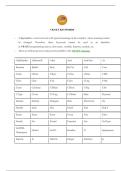
The following table lists some of the commonly used controls –
1. Form
Let's start with creating a Window Forms Application by following the
following steps in Microsoft Visual Studio - File → New Project →
Windows Forms Applications
,Finally, select OK, Microsoft Visual Studio creates your project and displays
following window Form with a name Form1.
Visual Basic Form is the container for all the controls that make up the user
interface. Every window you see in a running visual basic application is a
form, thus the terms form and window describe the same entity. Visual
Studio creates a default form for you when you create a Windows Forms
Application.
Form Properties
Following table lists down various important properties related to a form.
These properties can be set or read during application execution. You can
refer to Microsoft documentation for a complete list of properties associated
with a Form control −
S.N Properties Description
1 AcceptButton The button that's automatically activated
when you press Enter, no matter which
control has the focus at the time. Usually
the OK button on a form is set as
, AcceptButton for a form.
2 CancelButton The button that's automatically activated
when you hit the Esc key.
Usually, the Cancel button on a form is set
as CancelButton for a form.
3 AutoScale This Boolean property determines whether
the controls you place on the form are
automatically scaled to the height of the
current font. The default value of this
property is True. This is a property of the
form, but it affects the controls on the
form.
4 AutoScroll This Boolean property indicates whether
scroll bars will be automatically attached
to the form if it is resized to a point that
not all its controls are visible.
5 AutoScrollMinSize This property lets you specify the
minimum size of the form, before the
scroll bars are attached.
6 AutoScrollPosition The AutoScrollPosition is the number of
pixels by which the two scroll bars were
displaced from their initial locations.
7 BackColor Sets the form background color.
8 BorderStyle The BorderStyle property determines the
style of the form's border and the
appearance of the form −
None − Borderless window that
can't be resized.
Sizable − This is default value and
will be used for resizable window
An object is a type of user interface element you create on a Visual Basic
form by using a toolbox control. In fact, in Visual Basic, the form itself is an
object. Every Visual Basic control consists of three important elements −
Properties which describe the object,
Methods cause an object to do something and
Events are what happens when an object does something.
1. Properties
All the Visual Basic Objects can be moved, resized or customized by setting
their properties. A property is a value or characteristic held by a Visual
Basic object, such as Caption or Fore Color.
Properties can be set at design time by using the Properties window or at
run time by using statements in the program code.
Object. Property = Value
Where
Object is the name of the object you're customizing.
Property is the characteristic you want to change.
Value is the new property setting.
For example,
Form1.Caption = "Hello"
2. Methods
A method is a procedure created as a member of a class and they cause an
object to do something. Methods are used to access or manipulate the
characteristics of an object or a variable. There are mainly two categories of
methods you will use in your classes −
If you are using a control such as one of those provided by the
Toolbox, you can call any of its public methods. The requirements of
such a method depend on the class being used.
If none of the existing methods can perform your desired task, you
can add a method to a class.
,For example, the MessageBox control has a method named Show, which is
called in the code snippet below −
Public Class Form1
Private Sub Button1_Click(ByVal sender As System.Object, ByVal e As
System.EventArgs)
Handles Button1.Click
MessageBox.Show("Hello, World")
End Sub
End Class
3. Events
An event is a signal that informs an application that something important
has occurred. For example, when a user clicks a control on a form, the form
can raise a Click event and call a procedure that handles the event. There
are various types of events associated with a Form like click, double click,
close, load, resize, etc.
Following is the default structure of a form Load event handler subroutine.
You can see this code by double clicking the code which will give you a
complete list of the all events associated with Form control −
Private Sub Form1_Load(sender As Object, e As EventArgs) Handles
MyBase.Load
'event handler code goes here
End Sub
Basic Controls
VB.Net provides a huge variety of controls that help you to create rich user
interface. Functionalities of all these controls are defined in the respective
control classes. The control classes are defined in
the System.Windows.Forms namespace.
The following table lists some of the commonly used controls –
1. Form
Let's start with creating a Window Forms Application by following the
following steps in Microsoft Visual Studio - File → New Project →
Windows Forms Applications
,Finally, select OK, Microsoft Visual Studio creates your project and displays
following window Form with a name Form1.
Visual Basic Form is the container for all the controls that make up the user
interface. Every window you see in a running visual basic application is a
form, thus the terms form and window describe the same entity. Visual
Studio creates a default form for you when you create a Windows Forms
Application.
Form Properties
Following table lists down various important properties related to a form.
These properties can be set or read during application execution. You can
refer to Microsoft documentation for a complete list of properties associated
with a Form control −
S.N Properties Description
1 AcceptButton The button that's automatically activated
when you press Enter, no matter which
control has the focus at the time. Usually
the OK button on a form is set as
, AcceptButton for a form.
2 CancelButton The button that's automatically activated
when you hit the Esc key.
Usually, the Cancel button on a form is set
as CancelButton for a form.
3 AutoScale This Boolean property determines whether
the controls you place on the form are
automatically scaled to the height of the
current font. The default value of this
property is True. This is a property of the
form, but it affects the controls on the
form.
4 AutoScroll This Boolean property indicates whether
scroll bars will be automatically attached
to the form if it is resized to a point that
not all its controls are visible.
5 AutoScrollMinSize This property lets you specify the
minimum size of the form, before the
scroll bars are attached.
6 AutoScrollPosition The AutoScrollPosition is the number of
pixels by which the two scroll bars were
displaced from their initial locations.
7 BackColor Sets the form background color.
8 BorderStyle The BorderStyle property determines the
style of the form's border and the
appearance of the form −
None − Borderless window that
can't be resized.
Sizable − This is default value and
will be used for resizable window