LECTURE 3
Creating Dashboard Showing User Responses
Steps:
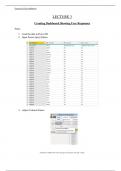
1. Load the data in Power BI.
2. Open Power Query Editor.
3. Adjust Column Names.
“It doesn’t matter how slow you go as long as you don’t stop.”
This interactive Power BI dashboard is designed to empower users with dynamic, real-time insights by enabling user-driven interactions. By integrating interactive features like slicers, filters, and drill-through capabilities, users can explore data from multiple perspectives, drill into specifics, and uncover trends at a granular level. The dashboard responds to user input, updating visualizations instantly, allowing for more personalized analysis and informed decision-making. Whether for sales performance, customer feedback, or operational metrics, this dashboard enhances the ability to make data-driven decisions based on real-time user responses.
Quality you can trust: written by students who passed their tests and reviewed by others who've used these notes.
No worries! You can instantly pick a different document that better fits what you're looking for.
No subscription, no commitments. Pay the way you're used to via credit card and download your PDF document instantly.
“Bought, downloaded, and aced it. It really can be that simple.”