Connect & Configure Platforms and Devices (P4, M4, D4)
Setting up a PS4
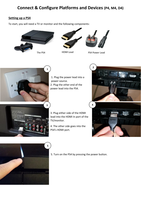
To start, you will need a TV or monitor and the following components:
The PS4 HDMI Lead PS4 Power Lead
2
1
1. Plug the power lead into a
power source.
2. Plug the other end of the
power lead into the PS4.
3 4
3. Plug either side of the HDMI
lead into the HDMI In port of the
TV/monitor.
4. The other side goes into the
PS4’s HDMI port.
5
5. Turn on the PS4 by pressing the power button.
, Connecting a Wired Controller
2
1
1. Insert controller USB into one
of the console’s USB ports.
2. Plug the other end of the
cable into the back of the
Dualshock 4.
3
3. Hold down the PS button till the lightbar at the back is on and the
controller will work.
Connecting a Wireless Controller
To connect a Dualshock controller wirelessly, use the same steps as above and unplug the controller to use
it wirelessly. Once a controller has been paired, it can be used by pressing the PS button, which will also
turn on the console.
Wireless mice and keyboards are connected via Bluetooth as well; most devices use a Bluetooth USB
dongle to instantly connect the mouse/keyboard to the computer.
1. Plug the USB dongle into any USB port on the desktop computer or laptop.
2. Make sure that there are batteries in the device.
3. Turn the device on by a small switch, and the device is ready to go.
Setting up a PS4
To start, you will need a TV or monitor and the following components:
The PS4 HDMI Lead PS4 Power Lead
2
1
1. Plug the power lead into a
power source.
2. Plug the other end of the
power lead into the PS4.
3 4
3. Plug either side of the HDMI
lead into the HDMI In port of the
TV/monitor.
4. The other side goes into the
PS4’s HDMI port.
5
5. Turn on the PS4 by pressing the power button.
, Connecting a Wired Controller
2
1
1. Insert controller USB into one
of the console’s USB ports.
2. Plug the other end of the
cable into the back of the
Dualshock 4.
3
3. Hold down the PS button till the lightbar at the back is on and the
controller will work.
Connecting a Wireless Controller
To connect a Dualshock controller wirelessly, use the same steps as above and unplug the controller to use
it wirelessly. Once a controller has been paired, it can be used by pressing the PS button, which will also
turn on the console.
Wireless mice and keyboards are connected via Bluetooth as well; most devices use a Bluetooth USB
dongle to instantly connect the mouse/keyboard to the computer.
1. Plug the USB dongle into any USB port on the desktop computer or laptop.
2. Make sure that there are batteries in the device.
3. Turn the device on by a small switch, and the device is ready to go.