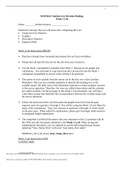
ATH221_W2_Lab_Excel_Adrian Arneson/MATH221 Statistics for Decision Making Week 2 Lab
Week 2 Lab Instructions-BEGIN Data have already been formatted and entered into an Excel worksheet. Obtain the Lab data file (Excel) for this lab from your instructor. Use the Week 1 spreadsheet (available from Week 1: Resources) for graphs and calculations. You will need to copy data from the Lab data file into the Week 1 calculations spreadsheet to answer some of these Lab questions. The names of each variable from the survey are in the first row of the Lab data Worksheet. This row has a double-underline to identify the heading row as the variable names. All other rows of the Worksheet represent a certain students’ answers to the survey questions. Therefore, the rows are called observations and the columns are called variables. On the last page of this Week 2 Lab document, you will find a Code Sheet section that identifies the correspondence between the variable names and the survey questions. Follow the directions below and then paste the graphs from Excel into the gray response areas for question 1 through 3. You will be using the Week 1 Excel Sheet for many of the calculations. Type your answers to questions 4 through 11 where noted in the gray areas. When asked for explanations, please give thorough, multi-sentence or paragraph length explanations. The completed Lab Word Document with your responses to the 11 questions will be the ONE and only document submitted to the Week 2: Lab. When saving and submitting the document, you are required to use the following filename format, replacing “Your_Name_Here” with your “Last name_First name”: MATH221_W2_Lab_Excel_Your_Name_H Week 2 Lab Instructions-END Creating Graphs Last Revised for SEP18 This study source was downloaded by from CourseH on :47:55 GMT -06:00 2 1. Create a pie chart for the variable Car Color: Select the column with the Car variable, including the title of Car Color. Click on Insert, and then Recommended Charts. It should sho a clustered column and click OK. Once the chart is shown, right click on the chart (main area) and select Change Chart Type. Select Pie and OK. Click on the pie slices, right click Add Data Labels, and select Add Data Callouts. Add an app

Geschreven voor
- Instelling
- Devry University
- Vak
- MATH 221
Documentinformatie
- Geüpload op
- 8 maart 2023
- Aantal pagina's
- 7
- Geschreven in
- 2022/2023
- Type
- Tentamen (uitwerkingen)
- Bevat
- Onbekend
Onderwerpen
-
math 221
-
ath221w2labexce
-
math221 statistics for decision making week 2 lab

Ook beschikbaar in voordeelbundel