

Windows 10
Windows Desktop
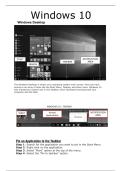
The Windows Desktop is simply your operating system main screen. Here you have
access to an array of tools like the Start Menu, Taskbar, and other icons. Windows 10
also introduces a search box in the Taskbar, which facilitates browsing both your
computer and the Web.
WINDOWS 10 – TASKBAR
START Pinned NOTIFICATION
MENU Applications AREA
Pin an Application to the Taskbar
Step 1: Search for the application you want to pin in the Start Menu.
Step 2: Right-click on the application.
Step 3: Select "More" option at the top of the menu.
Step 4: Select the "Pin to taskbar" option.
, Desktop Background
Another component of your Desktop is the
Background. This is simply an image that
appears at the back of your screen. Most
computers come with a pre-selected
background, but you can change it to any
image you want.
To change the background, follow these
steps:
Step 1: Right-click on the background and
choose "Personalize"
Step 2: From the Personalization
window, choose from a series of pre-
selected pictures or browse for your
own.
After choosing a picture, the
Background will change
automatically.
Virtual Desktops
One of the new features of Windows 10 is the addition of Virtual Desktops. This
allows you to have multiple desktop screens where you can keep open windows
organized.
To add a virtual desktop, follow these steps:
Step 1: Click Task View on the Taskbar
TASK VIEW
, Step 2: Click the "New desktop" option on the lower-right corner. You can access
or delete the new Desktop by clicking Task View again.
Click for a
New
Desktop
WINDOWS 10 START MENU
The Start Menu is the main point of access to your applications. There are two
main ways to open it:
Step 1: Use your mouse to click Windows icon in the lower-left corner of the
taskbar.
Step 2: Press the Windows key on your keyboard.
The Windows 10 Start Menu features two panes.
The left pane resembles the traditional
Start Menu from Windows 7 and
earlier, while the right pane features
live tiles that were used in Windows 8.
Windows Desktop
The Windows Desktop is simply your operating system main screen. Here you have
access to an array of tools like the Start Menu, Taskbar, and other icons. Windows 10
also introduces a search box in the Taskbar, which facilitates browsing both your
computer and the Web.
WINDOWS 10 – TASKBAR
START Pinned NOTIFICATION
MENU Applications AREA
Pin an Application to the Taskbar
Step 1: Search for the application you want to pin in the Start Menu.
Step 2: Right-click on the application.
Step 3: Select "More" option at the top of the menu.
Step 4: Select the "Pin to taskbar" option.
, Desktop Background
Another component of your Desktop is the
Background. This is simply an image that
appears at the back of your screen. Most
computers come with a pre-selected
background, but you can change it to any
image you want.
To change the background, follow these
steps:
Step 1: Right-click on the background and
choose "Personalize"
Step 2: From the Personalization
window, choose from a series of pre-
selected pictures or browse for your
own.
After choosing a picture, the
Background will change
automatically.
Virtual Desktops
One of the new features of Windows 10 is the addition of Virtual Desktops. This
allows you to have multiple desktop screens where you can keep open windows
organized.
To add a virtual desktop, follow these steps:
Step 1: Click Task View on the Taskbar
TASK VIEW
, Step 2: Click the "New desktop" option on the lower-right corner. You can access
or delete the new Desktop by clicking Task View again.
Click for a
New
Desktop
WINDOWS 10 START MENU
The Start Menu is the main point of access to your applications. There are two
main ways to open it:
Step 1: Use your mouse to click Windows icon in the lower-left corner of the
taskbar.
Step 2: Press the Windows key on your keyboard.
The Windows 10 Start Menu features two panes.
The left pane resembles the traditional
Start Menu from Windows 7 and
earlier, while the right pane features
live tiles that were used in Windows 8.

