ICT IGCSE Practical – Revision Presentation
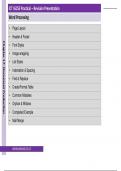
Word Processing
• Page Layout
• Header & Footer
Chapter 17: Document Production
• Font Styles
• Image wrapping
• List Styles
• Indentation & Spacing
• Find & Replace
• Create/Format Table
• Common Mistakes
• Orphan & Widows
• Completed Example
• Mail Merge
WWW.YAHMAD.CO.UK
, ICT IGCSE Practical – Revision Presentation
Word Processing
Page Layout (Size & Orientation)
Chapter 17: Document Production
Top Margin
Left Right
Margin Margin
Click on the Page Layout tab to
make changes to the page (Size,
Orientation and margins).
WWW.YAHMAD.CO.UK Bottom Margin
, ICT IGCSE Practical – Revision Presentation
Word Processing
Page Layout (Margins)
Chapter 17: Document Production
Margins
1. Click on Page layout
2. Click on Margins
3. Click on Custom
Margins
Enter the margins in
CM.
The top, bottom, left
and right may have
different margins.
WWW.YAHMAD.CO.UK
, ICT IGCSE Practical – Revision Presentation
Word Processing
Page Layout (Columns)
Chapter 17: Document Production
TIP:
Always double check
where the columns are
Columns after this point meant to start from.
1) Select the
amount of
Columns columns.
1. Highlight the text
2. Click on Page layout 2) Set the spacing.
3. Click on More You may need to
write 1cm.
Columns
4. Select the settings
for your columns
WWW.YAHMAD.CO.UK
Word Processing
• Page Layout
• Header & Footer
Chapter 17: Document Production
• Font Styles
• Image wrapping
• List Styles
• Indentation & Spacing
• Find & Replace
• Create/Format Table
• Common Mistakes
• Orphan & Widows
• Completed Example
• Mail Merge
WWW.YAHMAD.CO.UK
, ICT IGCSE Practical – Revision Presentation
Word Processing
Page Layout (Size & Orientation)
Chapter 17: Document Production
Top Margin
Left Right
Margin Margin
Click on the Page Layout tab to
make changes to the page (Size,
Orientation and margins).
WWW.YAHMAD.CO.UK Bottom Margin
, ICT IGCSE Practical – Revision Presentation
Word Processing
Page Layout (Margins)
Chapter 17: Document Production
Margins
1. Click on Page layout
2. Click on Margins
3. Click on Custom
Margins
Enter the margins in
CM.
The top, bottom, left
and right may have
different margins.
WWW.YAHMAD.CO.UK
, ICT IGCSE Practical – Revision Presentation
Word Processing
Page Layout (Columns)
Chapter 17: Document Production
TIP:
Always double check
where the columns are
Columns after this point meant to start from.
1) Select the
amount of
Columns columns.
1. Highlight the text
2. Click on Page layout 2) Set the spacing.
3. Click on More You may need to
write 1cm.
Columns
4. Select the settings
for your columns
WWW.YAHMAD.CO.UK