
P5 Input and manipulate the data entered into data management software
How is it done?
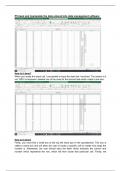
When you locate the exact cell, I proceeded to input the data that I received. The reason it is
not 15001 is because I deleted one of the rows for the second task which made it one less.
How is it done?
Firstly, you must find a small box at the top left hand part of the spreadsheet. This box is
called a name box and will allow the user to locate a specific cell no matter how large the
number is. Afterwards, the user should input the letter which indicates the column and
number which represents the row, which will then locate that particular cell. Finally, the
, individual right clicks on the number which can be seen at the very left hand part of the
spreadsheet and delete should become an available option.
How is it done?
This is called manipulating the data, firstly you go to any random cell on the spreadsheet and
begin by tapping the (=) sign. This begins the formula to calculating a sum. Next I inputted
the following command (CORREL) that allowed me to select and highlight the cells I wanted
to use. Afterwards I used the brackets to separate and highlight the chosen cell groups to
then calculate the correlation coefficient.
How is it done?
When you locate the exact cell, I proceeded to input the data that I received. The reason it is
not 15001 is because I deleted one of the rows for the second task which made it one less.
How is it done?
Firstly, you must find a small box at the top left hand part of the spreadsheet. This box is
called a name box and will allow the user to locate a specific cell no matter how large the
number is. Afterwards, the user should input the letter which indicates the column and
number which represents the row, which will then locate that particular cell. Finally, the
, individual right clicks on the number which can be seen at the very left hand part of the
spreadsheet and delete should become an available option.
How is it done?
This is called manipulating the data, firstly you go to any random cell on the spreadsheet and
begin by tapping the (=) sign. This begins the formula to calculating a sum. Next I inputted
the following command (CORREL) that allowed me to select and highlight the cells I wanted
to use. Afterwards I used the brackets to separate and highlight the chosen cell groups to
then calculate the correlation coefficient.


