100% de satisfacción garantizada Inmediatamente disponible después del pago Tanto en línea como en PDF No estas atado a nada 4.2 TrustPilot
logo-home
Examen

Word Chapter 3 Simulation Training Questions and Answers correct

Puntuación
-
Vendido
-
Páginas
4
Grado
A+
Subido en
01-02-2025
Escrito en
2024/2025

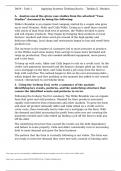
Word Chapter 3 Simulation Training Questions and Answers correct In the first cell of the first row, Type Table 2- Impact Sources (leave a space before and after the dash and do not type a period) With the inserion point in the first cell of the first row of Table 2, tye Table 2- Impact Sources. (leave a space before and afted the dash and not type a period) In the first cell of row 2, type Employee Compensation and press TAB Click in the first cell of row 2, type Employee Compensation. Press TAB , remaining text autocompletes. Delete the Category column in Table 1. Insert a row at the top of the table. Type Table 1- Top Industry Sectors in the first cell of row 1 Table 1 (leave a space before and after the dash). Text will automatically wrap in the cell. Point over the top border of the Category column of table 1 and when the downward pointing arrow appears, click to select it. Click the Table Tools Layout tab. In the rows and arrows group, click the delete arrow and then delete columns. On the table tools layout tab, in the Rows and Columns group, click Insert Above. In the first cell of row 1 Table 1 type Table 1- Top Industry Sectors. Do not type a period In Table 1, insert a new row above the row that contains Sector 589 Above the row with the text 589, point to the left border of the table to display the Insert Row/Column button, and then click one time Merge all cells in row 1 of Table 1. Position the mouse pointer on the border between the first and second columns of Table 1 (so that it resembles a double headed arrow). Drag to the left to reduce the column width to approximately 1 inch. Click just outside the left border of row 1 of Table 1 to select it. On the Table Tools Layout Tab, in the Merge cells group, click Merge Cells. Position the mouse pointer on the border between the first and second columns of Table 1. Drag to the left to change the column width to approximately 1 inch. Select row 2 as well as all remaining rows below it in Table 1. adjust the row height to 0.3" (because text wraps in row six, the row will not be adjusted to the same height as the other selected rows). Drag to select row2 and all remaining rows below it in Table 1. On the Table Tools Layout tab, in the Cell Size group, in the Table Row Height box, use the spin box arrow to change the height to 0.3 inches Position The mouse pointer just inside the left edge of the third row of Table 1 (containing 487), Click and drag down to select all remaining values in the first column. Split the cells, resulting in 2 columns and 5 rows. (Hint: make sure to deselect Merge cells before split) Position the mouse pointer just inside the left edge of the third row of Table 1 (containing 487), and click and drag down to select all remaining values in the first column. On the Table Tools Layout tab, in the Merge group, click Split Cells. In the Split Cells dialogue box, ensure that 2 displays in the Number of Columns and 5 displays in the number of rows. Click to deselect the Merge cells before split check box. Click OK. Simultaneously align the numbers in the right most column of table 1 using the Align Top Right selection. Simultaneously Align Center all text in the second row of table 2. Click and drag to select the cells containing numbers in the rightmost column of Table 1. On the Table Tools Layout Tab, in the alignment group, click Align Top Right. Click and drag to select row 2 in Table 2. On the Layout tab, in the Alignment group, click Align Center Click on the top left cell of Table 1. Click the Tables Tools design tab. Apply List Table 3- Accent 1 (2nd column, 3rd row under List Tables) table style to Table 1. Click in the top left cell of Table 1. Click the Table Tools design tab. In the Table Styles group, click more, then click List Table 3- Accent 1. Open the Table Properties dialogue box and center Table 1 horizontally on the page. Click the Table Tools Layout tab. In the Table Group, click Properties. In the Table Properties dialogue box, click Center. Click OK. Click in the last cell of the last row in Table 1 (beneath the last economic impact number). Insert a formula to total all values in the column and in the same dialogue box, change the Number format of the total to #,##0. Click in the cell immediately below the last economic impact number. On the Table Tools Layout tab, in the Data group, click Formula. In the formula dialogue box, click the Number arrow then click #,##0. Click OK. Update the field in the last cell on the row of Table 1 to reflect the change. Right click the total in the last cell in the last row, and from the shortcut menu, click Update Field. Select rows 3-7 in Table 1 (excluding the two rows containing column headings and the final Total row). sort the selected rows by Column 4 in Descending order. Drag to select rows 3-7 in Table 1. On the Table Tools Layout tab, in the Data group, click Sort. Click the Sort by arrow and click Column 4. Click the Descending option beside the first Sort category. Click OK. Select row 3 through the last row (on the next page) in Table 2. Sort the selected rows by Column 1 in Ascending order. Drag to select rows 3-5 in Table 2. On the Table Tools Layout tab, in the Data group, click Sort. In the sort dialogue box, with Column 1 selected, click the Ascending option beside the first Sort category. Click OK. Select the first two rows of Table 2. Repeat the header rows (those you have selected) so they also display at the top of the next page. Drag to select the first two rows of Table 2. On the Table Tools Layout tab, in the data group, click Repeat Header Rows. Select Table 2. Click the Table Tools Design tab and select the Double solid lines, 1/2 pt, Accent 4 border style (3rd row, 5th column under Theme Borders). Apply the border style to All Borders. (Hint: Click the Borders arrow to select All Borders) Click the Table Select indicator beside Table 2. Click the Table Tools Design tab. In the Borders group, click Borders Styles and then click Double solid lines, 1/2 pt, Accent 4 (3rd row, 5th column under Theme Borders). In the Borders group, click the Borders arrow and then click All Borders. Select row 1 in Table 2. Click the Shading arrow in the Table Styles group and select More Colors. Apply a custom shading with Red= 240 Green= 239 Blue= 29 Click and drag to select row 1 in Table 2. On the Table Tools Design tab, in the Table Styles group, click the Shading arrow and then More Colors. In the Colors dialogue box, click the Custom tab. Type 240 for Red, type 239 for Green and 29 for Blue. Click OK. Click anywhere in Table 1 on the preceding page. Click the References tab and insert a caption below the table with italicized text Table 1: Economic Impact by Industry (no period). Click the Home tab and Increase the indent of the caption by two levels. Click anywhere in Table 1 and then click the References tab. In the Captions group, click Insert Caption. Type a colon press the SPACEBAR and then type Economic Impact by Industry. Click the Position arrow and then click below selected item. Click OK. Click the Home tab. In the Paragraph group, click Increase Indent. Click again. Select the text at the beginning of the document, beginning with Description and ending with 178 jobs. Convert the selected text to a table, accepting all default settings. Drag to select the text on page 6 beginning with Description and ending with 178 jobs. Click the inset tab. In the tables group, click Table and then click Convert Text to Table. In the Convert Text to Table dialogue box, click OK.

Mostrar más Leer menos
Institución
MSN 570
Grado
MSN 570


Ups! No podemos cargar tu documento ahora. Inténtalo de nuevo o contacta con soporte.

Escuela, estudio y materia

Institución
MSN 570
Grado
MSN 570

Información del documento

Subido en
1 de febrero de 2025
Número de páginas
4
Escrito en
2024/2025
Tipo
Examen
Contiene
Preguntas y respuestas

Temas

Vista previa del contenido

Word Chapter 3 Simulation Training
Questions and Answers correct
In the first cell of the first row, Type Table 2- Impact Sources (leave a space before and
after the dash and do not type a period) - answer With the inserion point in the first
cell of the first row of Table 2, tye Table 2- Impact Sources. (leave a space before and
afted the dash and not type a period)

In the first cell of row 2, type Employee Compensation and press TAB - answer Click
in the first cell of row 2, type Employee Compensation. Press TAB , remaining text
autocompletes.

Delete the Category column in Table 1. Insert a row at the top of the table. Type Table
1- Top Industry Sectors in the first cell of row 1 Table 1 (leave a space before and after
the dash). Text will automatically wrap in the cell. - answer Point over the top border
of the Category column of table 1 and when the downward pointing arrow appears, click
to select it. Click the Table Tools Layout tab. In the rows and arrows group, click the
delete arrow and then delete columns. On the table tools layout tab, in the Rows and
Columns group, click Insert Above. In the first cell of row 1 Table 1 type Table 1- Top
Industry Sectors. Do not type a period

In Table 1, insert a new row above the row that contains Sector 589 - answer Above
the row with the text 589, point to the left border of the table to display the Insert
Row/Column button, and then click one time

Merge all cells in row 1 of Table 1. Position the mouse pointer on the border between
the first and second columns of Table 1 (so that it resembles a double headed arrow).
Drag to the left to reduce the column width to approximately 1 inch. - answer Click
just outside the left border of row 1 of Table 1 to select it. On the Table Tools Layout
Tab, in the Merge cells group, click Merge Cells. Position the mouse pointer on the
border between the first and second columns of Table 1. Drag to the left to change the
column width to approximately 1 inch.

Select row 2 as well as all remaining rows below it in Table 1. adjust the row height to
0.3" (because text wraps in row six, the row will not be adjusted to the same height as
the other selected rows). - answer Drag to select row2 and all remaining rows below
it in Table 1. On the Table Tools Layout tab, in the Cell Size group, in the Table Row
Height box, use the spin box arrow to change the height to 0.3 inches

Position The mouse pointer just inside the left edge of the third row of Table 1
(containing 487), Click and drag down to select all remaining values in the first column.
Split the cells, resulting in 2 columns and 5 rows. (Hint: make sure to deselect Merge
cells before split) - answer Position the mouse pointer just inside the left edge of the

$12.99
Accede al documento completo:

100% de satisfacción garantizada
Inmediatamente disponible después del pago
Tanto en línea como en PDF
No estas atado a nada


Documento también disponible en un lote

Conoce al vendedor

Seller avatar
Los indicadores de reputación están sujetos a la cantidad de artículos vendidos por una tarifa y las reseñas que ha recibido por esos documentos. Hay tres niveles: Bronce, Plata y Oro. Cuanto mayor reputación, más podrás confiar en la calidad del trabajo del vendedor.
Pogba119 Harvard University
Seguir Necesitas iniciar sesión para seguir a otros usuarios o asignaturas
Vendido
48
Miembro desde
1 año
Número de seguidores
2
Documentos
4936
Última venta
1 mes hace
NURSING TEST

BEST EDUCATIONAL RESOURCES FOR STUDENTS

3.9

9 reseñas

5
4
4
2
3
2
2
0
1
1

Recientemente visto por ti

Por qué los estudiantes eligen Stuvia

Creado por compañeros estudiantes, verificado por reseñas

Calidad en la que puedes confiar: escrito por estudiantes que aprobaron y evaluado por otros que han usado estos resúmenes.

¿No estás satisfecho? Elige otro documento

¡No te preocupes! Puedes elegir directamente otro documento que se ajuste mejor a lo que buscas.

Paga como quieras, empieza a estudiar al instante

Sin suscripción, sin compromisos. Paga como estés acostumbrado con tarjeta de crédito y descarga tu documento PDF inmediatamente.

Student with book image

“Comprado, descargado y aprobado. Así de fácil puede ser.”

Alisha Student

Preguntas frecuentes