

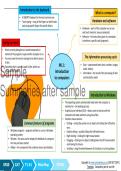
Introduction to the keyboard
What is a computer?
• A QWERTY keyboard is the most common one
• Touch typing – using all the fingers on both hands Hardware and software
and using specific fingers for specific letters.
• Hardware – parts of the computer we can see
•
and touch (monitor, mouse, keyboard).
• Software – the instructions given to a computer
•
to perform a specific task (programs).
Saving our work
• Work currently being done is stored temporarily in •
memory if the program is open and the computer is on.
• You must save the work to storage to be able to access • The information processing cycle
it later.
• Everything that’s saved is saved in files, which are M1.1: • Data – unprocessed items (text, numbers, images,
Sample
•
•
grouped into folders. Introduction
to computers
•
audio, videos).
Information – the result of the processing of data
and should be useful.
•
Summaries after sample •
• Introduction to Windows
The operating system automatically loads when the computer is
switched on – the booting process.
• Graphical user interface (GUI) – allows users to interact with the
computer and make selections using icons/tiles.
• Common mouse actions:
Common features of programs o Clicking – resting the pointer on an object and clicking the left button
once.
• Windows programs – programs written to run on a Windows o Double-clicking – quickly clicking the left button twice.
operating system. o Right-clicking – clicking the right mouse button.
• Window – the area used to display the feedback of a program o Dragging – clicking on an object, holding down the left mouse button
that has just been started. and moving the mouse.
• Ribbon – the component that combines menus and toolbars. o Scrolling – using the wheel between the 2 buttons to scroll up/down.
•
•
•
Copyright © www.summariessa.co.za (DO NOT COPY)
GR10 CAT T1-S1 Mind Map CPOYL
• Textbook: Computers, part of your life
,Sample
Summaries after sample
, M3.4: Adding graphic M3.3: Editing
• The Picture Tools Format tab on the Ribbon Copying, moving and deleting text
appears when you select an image.
• Change size by dragging the corner handles, use • Deleting text:
the commands in the Size group to specify sizes, or o Use the Backspace key to remove text to the left of
Crop the image. the cursor.
• Picture Styles allow you to change the border of the o Use the Delete key to remove text to the right of the
picture. cursor.
• Shapes: Insert -> Shapes -> select the shape ->
place the pointer where you want the shape OR M3.3: Editing • Moving text:
click on the shape and click in the document. o Click Cut / right-click and select Cut / press <Ctrl><X>.
• Drop Caps - enlarge the first letter/word of a o Place the cursor where you want the text and click
paragraph to make it more interesting. M3.4: Adding Paste / right-click and select Paste / press <Ctrl><V>.
Sample
• Watermark – text/graphic that appears very lightly
in the background of a document. graphic • Copying text:
• SmartArt - presents information with the use of o Select the text -> click Copy / right-click and select
diagrams. Copy / press <Ctrl><C>.
• o Place the cursor where you want the text and click
Summaries after sample •
•
.
•
Automatic editing options
Remove the change by pressing the Backspace key or click Undo (<Ctrl><Z>).
•
Paste / right-click and select Paste / press <Ctrl><V>.
• How to see the list of AutoCorrect options: File -> Options -> Proofing -> • Find and replace
AutoCorrect Options.
• Find – used to locate a certain word/character string.
• • Replace – used to replace a given word/string with another.
Spacing and punctuation marks
•
• En dash uses - scores (3–1), ages (16–20), dates (2–4 July or 18–5–1958)
and parentheses. Checking of spelling
• Em dash (—) is longer and is seldom used.
• Use smart quotes (“ ”) instead of straight quotes. • Check and correct the spelling: place the cursor at
• Straight quotes are used for mathematical units of measurement. the top of the document-> Review, Spelling &
• Hard spaces - used when certain information (names, measurements and Grammer -> spelling errors will appear in a spelling
dates) must stay on the same line. panel, and possible replacements are provided.
• •
Copyright © www.summariessa.co.za (DO NOT COPY)
GR10 CAT T1-S3 Mind Map CPOYL Textbook: Computers, part of your life
What is a computer?
• A QWERTY keyboard is the most common one
• Touch typing – using all the fingers on both hands Hardware and software
and using specific fingers for specific letters.
• Hardware – parts of the computer we can see
•
and touch (monitor, mouse, keyboard).
• Software – the instructions given to a computer
•
to perform a specific task (programs).
Saving our work
• Work currently being done is stored temporarily in •
memory if the program is open and the computer is on.
• You must save the work to storage to be able to access • The information processing cycle
it later.
• Everything that’s saved is saved in files, which are M1.1: • Data – unprocessed items (text, numbers, images,
Sample
•
•
grouped into folders. Introduction
to computers
•
audio, videos).
Information – the result of the processing of data
and should be useful.
•
Summaries after sample •
• Introduction to Windows
The operating system automatically loads when the computer is
switched on – the booting process.
• Graphical user interface (GUI) – allows users to interact with the
computer and make selections using icons/tiles.
• Common mouse actions:
Common features of programs o Clicking – resting the pointer on an object and clicking the left button
once.
• Windows programs – programs written to run on a Windows o Double-clicking – quickly clicking the left button twice.
operating system. o Right-clicking – clicking the right mouse button.
• Window – the area used to display the feedback of a program o Dragging – clicking on an object, holding down the left mouse button
that has just been started. and moving the mouse.
• Ribbon – the component that combines menus and toolbars. o Scrolling – using the wheel between the 2 buttons to scroll up/down.
•
•
•
Copyright © www.summariessa.co.za (DO NOT COPY)
GR10 CAT T1-S1 Mind Map CPOYL
• Textbook: Computers, part of your life
,Sample
Summaries after sample
, M3.4: Adding graphic M3.3: Editing
• The Picture Tools Format tab on the Ribbon Copying, moving and deleting text
appears when you select an image.
• Change size by dragging the corner handles, use • Deleting text:
the commands in the Size group to specify sizes, or o Use the Backspace key to remove text to the left of
Crop the image. the cursor.
• Picture Styles allow you to change the border of the o Use the Delete key to remove text to the right of the
picture. cursor.
• Shapes: Insert -> Shapes -> select the shape ->
place the pointer where you want the shape OR M3.3: Editing • Moving text:
click on the shape and click in the document. o Click Cut / right-click and select Cut / press <Ctrl><X>.
• Drop Caps - enlarge the first letter/word of a o Place the cursor where you want the text and click
paragraph to make it more interesting. M3.4: Adding Paste / right-click and select Paste / press <Ctrl><V>.
Sample
• Watermark – text/graphic that appears very lightly
in the background of a document. graphic • Copying text:
• SmartArt - presents information with the use of o Select the text -> click Copy / right-click and select
diagrams. Copy / press <Ctrl><C>.
• o Place the cursor where you want the text and click
Summaries after sample •
•
.
•
Automatic editing options
Remove the change by pressing the Backspace key or click Undo (<Ctrl><Z>).
•
Paste / right-click and select Paste / press <Ctrl><V>.
• How to see the list of AutoCorrect options: File -> Options -> Proofing -> • Find and replace
AutoCorrect Options.
• Find – used to locate a certain word/character string.
• • Replace – used to replace a given word/string with another.
Spacing and punctuation marks
•
• En dash uses - scores (3–1), ages (16–20), dates (2–4 July or 18–5–1958)
and parentheses. Checking of spelling
• Em dash (—) is longer and is seldom used.
• Use smart quotes (“ ”) instead of straight quotes. • Check and correct the spelling: place the cursor at
• Straight quotes are used for mathematical units of measurement. the top of the document-> Review, Spelling &
• Hard spaces - used when certain information (names, measurements and Grammer -> spelling errors will appear in a spelling
dates) must stay on the same line. panel, and possible replacements are provided.
• •
Copyright © www.summariessa.co.za (DO NOT COPY)
GR10 CAT T1-S3 Mind Map CPOYL Textbook: Computers, part of your life



