
Functions and formulas – Excel
Average function Select cell; type =AVERAGE(; select cells you want to average; type );
ENTER.
Count function Select cell; type =COUNT(, select your range that you want to count; type );
ENTER.
If function Select cell; formulas tab; insert function button;
; logical; IF; OK;
enter values, OK.
Max function Select cell; TYPE =MAX(; select the range where your maximum value is in;
type ); ENTER.
Min function Select cell; TYPE =MIN(; select the range where your minimum value is in;
type ); ENTER.
Sum function Select cell; type =SUM(; select your range; type ); ENTER.
Today function Select cell; formulas tab; Date & Time button; TODAY; OK.
VLOOKUP Select cell; type =VLOOKUP(; select what you want to look up; type , ; select
the range where you want to look for it; type , ; type the number of the
column; type ); ENTER.
e.g. =VLOOKUP(G5, G4:H10, 2)
ROUND function Select cell; type =ROUND(; select the cell you want to round off; type ,0);
ENTER.
, e.g. =ROUND(J5,0)
PROPER Select cell; type =PROPER(; click cell that you want to capitalize; type );
function ENTER.
e.g. =PROPER(J7)
COUNTIF Select cell; type =COUNTIF(; select the range you want to search in; type
“your value you want to search for”); ENTER.
e.g. =COUNTIF(H8:H21, “Books”)
SUMIF Select cell; type =SUMIF(range you want to search for a value, value, range
you want to add the values of); ENTER.
e.g. =SUMIF(D5:D22,3,F5:F22)
CONCAT Select cell; formulas tab; Text button; CONCAT;
In each text box add a cell you wish to join with the other cells in the other
textboxes; OK.
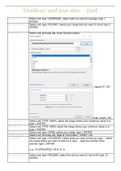
Nested IF Select a cell; formulas tab; insert function button;
; click this arrow
and select Logical, select IF in the box below; OK.
Average function Select cell; type =AVERAGE(; select cells you want to average; type );
ENTER.
Count function Select cell; type =COUNT(, select your range that you want to count; type );
ENTER.
If function Select cell; formulas tab; insert function button;
; logical; IF; OK;
enter values, OK.
Max function Select cell; TYPE =MAX(; select the range where your maximum value is in;
type ); ENTER.
Min function Select cell; TYPE =MIN(; select the range where your minimum value is in;
type ); ENTER.
Sum function Select cell; type =SUM(; select your range; type ); ENTER.
Today function Select cell; formulas tab; Date & Time button; TODAY; OK.
VLOOKUP Select cell; type =VLOOKUP(; select what you want to look up; type , ; select
the range where you want to look for it; type , ; type the number of the
column; type ); ENTER.
e.g. =VLOOKUP(G5, G4:H10, 2)
ROUND function Select cell; type =ROUND(; select the cell you want to round off; type ,0);
ENTER.
, e.g. =ROUND(J5,0)
PROPER Select cell; type =PROPER(; click cell that you want to capitalize; type );
function ENTER.
e.g. =PROPER(J7)
COUNTIF Select cell; type =COUNTIF(; select the range you want to search in; type
“your value you want to search for”); ENTER.
e.g. =COUNTIF(H8:H21, “Books”)
SUMIF Select cell; type =SUMIF(range you want to search for a value, value, range
you want to add the values of); ENTER.
e.g. =SUMIF(D5:D22,3,F5:F22)
CONCAT Select cell; formulas tab; Text button; CONCAT;
In each text box add a cell you wish to join with the other cells in the other
textboxes; OK.
Nested IF Select a cell; formulas tab; insert function button;
; click this arrow
and select Logical, select IF in the box below; OK.


