Excel Certification Exam Q-
Bank / Already Graded A+
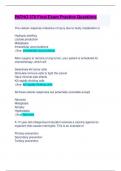
Practice questions for this set
Learn / Study with Learn
file > export >pdf
Choose matching term
1 apply table style to cell range 2 sum using destination cells
3 export a worksheet to pdf 4 inspect a w/s for personal info
Don't know?
Terms in this set (80)
import files data>get external data
specify delimitaton, column formats
Comments Review > new comment
Wrap text home > wrap text
, center across selection home > alignment > alignment setting (arrow in BR)>
Horizontal alignment
insert a column in between use CTRL when selecting the columns
each column
manually adjust column and home > format > column width
row height
export a worksheet to pdf file > export >pdf
inspect a w/s for personal file > check for issues > inspect> inspect> remove all doc prop
info and personal info
inspect a w/s for accessibility, file > check for issues > check compatibility or accessibility
compatibility
adjust page breaks view > page break preview> drag around
specify print titles page layout > print titles > select rows and columns to have print
on each page
change page margins and file > print
scaling
outline data data > group >auto outline (has to already have subtotals)
format cell borders home > font > square
format painter select cells > clipboard > format painter DC
to do sets of cells esc to stop
insert image easier fit: format, arrange and align, snap to grid
sum using destination cells click where you want it to go > auto sum
sum using source cells select the cells you want it to use > autosum
apply table style to cell range home> format as table
turn table to cell range design > convert to range
Bank / Already Graded A+
Practice questions for this set
Learn / Study with Learn
file > export >pdf
Choose matching term
1 apply table style to cell range 2 sum using destination cells
3 export a worksheet to pdf 4 inspect a w/s for personal info
Don't know?
Terms in this set (80)
import files data>get external data
specify delimitaton, column formats
Comments Review > new comment
Wrap text home > wrap text
, center across selection home > alignment > alignment setting (arrow in BR)>
Horizontal alignment
insert a column in between use CTRL when selecting the columns
each column
manually adjust column and home > format > column width
row height
export a worksheet to pdf file > export >pdf
inspect a w/s for personal file > check for issues > inspect> inspect> remove all doc prop
info and personal info
inspect a w/s for accessibility, file > check for issues > check compatibility or accessibility
compatibility
adjust page breaks view > page break preview> drag around
specify print titles page layout > print titles > select rows and columns to have print
on each page
change page margins and file > print
scaling
outline data data > group >auto outline (has to already have subtotals)
format cell borders home > font > square
format painter select cells > clipboard > format painter DC
to do sets of cells esc to stop
insert image easier fit: format, arrange and align, snap to grid
sum using destination cells click where you want it to go > auto sum
sum using source cells select the cells you want it to use > autosum
apply table style to cell range home> format as table
turn table to cell range design > convert to range