?q=EUP1501+Assignment+2+Newsletter+(COMPLETE+
EUP1501
Assignment 2 Semester 1 2025
Due Date: April 2025
EUP1501
Assignment 2 Semester 1 2025
Detailed Solutions, References & Explanations
Unique number:
Due Date: April 2025
,?q=EUP1501+Assignment+2+Newsletter+(COMPLETE+
EUP1501 Assignment 2 Newsletter | Semester 1 April 2025
2. Set Up the Page:
• Change the page layout to Landscape.
• Adjust margins to Narrow (1.27 cm on all sides).
3. Enter and Format the Title: • Title:
, ?q=EUP1501+Assignment+2+Newsletter+(COMPLETE+
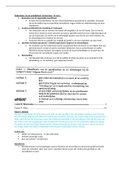
STEP BY STEP GUIDELINE ON HOW TO TACKLE EUP1501 ASSIGNMENT 2
Step-by-Step Guide to Creating the Newsletter in Microsoft Word
1. Open Microsoft Word and Create a New Document
Open Microsoft Word.
Click on File → New → Blank Document.
2. Set Up the Page Layout
Click on the Layout tab.
Click on Orientation → Select Landscape.
Click on Margins → Select Narrow (1.27 cm on all sides).
3. Enter and Format the Title
Type: "Tech Innovations Weekly"
o Select the text → Set Font to 20, Bold
o Apply Intense Quote style (found under the Styles group in the Home
tab).
EUP1501
Assignment 2 Semester 1 2025
Due Date: April 2025
EUP1501
Assignment 2 Semester 1 2025
Detailed Solutions, References & Explanations
Unique number:
Due Date: April 2025
,?q=EUP1501+Assignment+2+Newsletter+(COMPLETE+
EUP1501 Assignment 2 Newsletter | Semester 1 April 2025
2. Set Up the Page:
• Change the page layout to Landscape.
• Adjust margins to Narrow (1.27 cm on all sides).
3. Enter and Format the Title: • Title:
, ?q=EUP1501+Assignment+2+Newsletter+(COMPLETE+
STEP BY STEP GUIDELINE ON HOW TO TACKLE EUP1501 ASSIGNMENT 2
Step-by-Step Guide to Creating the Newsletter in Microsoft Word
1. Open Microsoft Word and Create a New Document
Open Microsoft Word.
Click on File → New → Blank Document.
2. Set Up the Page Layout
Click on the Layout tab.
Click on Orientation → Select Landscape.
Click on Margins → Select Narrow (1.27 cm on all sides).
3. Enter and Format the Title
Type: "Tech Innovations Weekly"
o Select the text → Set Font to 20, Bold
o Apply Intense Quote style (found under the Styles group in the Home
tab).