Empowerment Technologies
LESSON 6
Imaging and Design for Online Environment
Photoshop Toolbox
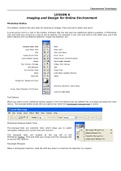
The toolbox contains the main tools for working on images. Click any tool to select and use it.
A small arrow next to a tool in the toolbox indicates that the tool also has additional options available. In Photoshop,
click and hold your mouse on a tool to see its options. For example, if you click and hold on the select tool, you'll see
select options such as elliptical selection, single row selection, etc.
Tool Options
When you select a tool, additional options appear in the Tool Options bar (by default this is located just below the main
menu). The example below shows the tool options bar when the rectangular marquee tool is active.
Photoshop Marquee Select Tools
The marquee tools are selection tools which allow you to select
rectangles, ellipses and 1-pixel rows and columns.
The marquee tools are located at the top left of the
Photoshop Toolbox. Click and hold your mouse over the marquee tool
to see the four options:
Rectangle Marquee
Make a rectangular selection. Hold the shift key down to constrain the selection to a square.
, Empowerment Technologies
Note: ImageReady also allows rounded corners in rectangles.
Elliptical Marquee
Make an elliptical selection. Hold the shift key down to constrain the selection to a circle.
Single Row Marquee
Make a horizontal selection 1 pixel high.
Single Column Marquee
Make a vertical selection 1 pixel wide.
Marquee Options
When you select any marquee tool, related options appear in the Tool Options bar (just below the main menu). This
allows you to set the type of selection, feathering, etc. Options are slightly different for each marquee tool.
Photoshop Lasso Tools
The lasso tools allow you to select precise areas of an image by drawing or
tracing the selection outline. There are three lasso tools available:
Lasso Tool
This is a freehand selection tool. Click and hold your left mouse button on the
image and draw your selection.
Polygonal Lasso Tool
Similar to the lasso tool, except that instead of holding your mouse button down to draw, left-click on various points to
create a selection with a series of straight edges.
You can also hold down the Alt key (Windows) or Option key (Mac OS) to draw freehand sections.
Magnetic Lasso Tool
This is a very handy tool for selecting areas which have reasonably well-defined edges. Left-click at the starting point
of your selection and simply move the mouse along the edge.
"Fastening points" are automatically made at various points along the edges. Left-click at any time to add a fastening
point manually.
To Complete a Selection
To finish drawing a selection, either click on the selection starting point or double-click anywhere.
LESSON 6
Imaging and Design for Online Environment
Photoshop Toolbox
The toolbox contains the main tools for working on images. Click any tool to select and use it.
A small arrow next to a tool in the toolbox indicates that the tool also has additional options available. In Photoshop,
click and hold your mouse on a tool to see its options. For example, if you click and hold on the select tool, you'll see
select options such as elliptical selection, single row selection, etc.
Tool Options
When you select a tool, additional options appear in the Tool Options bar (by default this is located just below the main
menu). The example below shows the tool options bar when the rectangular marquee tool is active.
Photoshop Marquee Select Tools
The marquee tools are selection tools which allow you to select
rectangles, ellipses and 1-pixel rows and columns.
The marquee tools are located at the top left of the
Photoshop Toolbox. Click and hold your mouse over the marquee tool
to see the four options:
Rectangle Marquee
Make a rectangular selection. Hold the shift key down to constrain the selection to a square.
, Empowerment Technologies
Note: ImageReady also allows rounded corners in rectangles.
Elliptical Marquee
Make an elliptical selection. Hold the shift key down to constrain the selection to a circle.
Single Row Marquee
Make a horizontal selection 1 pixel high.
Single Column Marquee
Make a vertical selection 1 pixel wide.
Marquee Options
When you select any marquee tool, related options appear in the Tool Options bar (just below the main menu). This
allows you to set the type of selection, feathering, etc. Options are slightly different for each marquee tool.
Photoshop Lasso Tools
The lasso tools allow you to select precise areas of an image by drawing or
tracing the selection outline. There are three lasso tools available:
Lasso Tool
This is a freehand selection tool. Click and hold your left mouse button on the
image and draw your selection.
Polygonal Lasso Tool
Similar to the lasso tool, except that instead of holding your mouse button down to draw, left-click on various points to
create a selection with a series of straight edges.
You can also hold down the Alt key (Windows) or Option key (Mac OS) to draw freehand sections.
Magnetic Lasso Tool
This is a very handy tool for selecting areas which have reasonably well-defined edges. Left-click at the starting point
of your selection and simply move the mouse along the edge.
"Fastening points" are automatically made at various points along the edges. Left-click at any time to add a fastening
point manually.
To Complete a Selection
To finish drawing a selection, either click on the selection starting point or double-click anywhere.